
Configure Customer ID
Open Stores > Configuration > MageB2B > Customer ID > General settings. Set the configuration scope deliberately: numbering is resolved from the default store view of the customer's website.
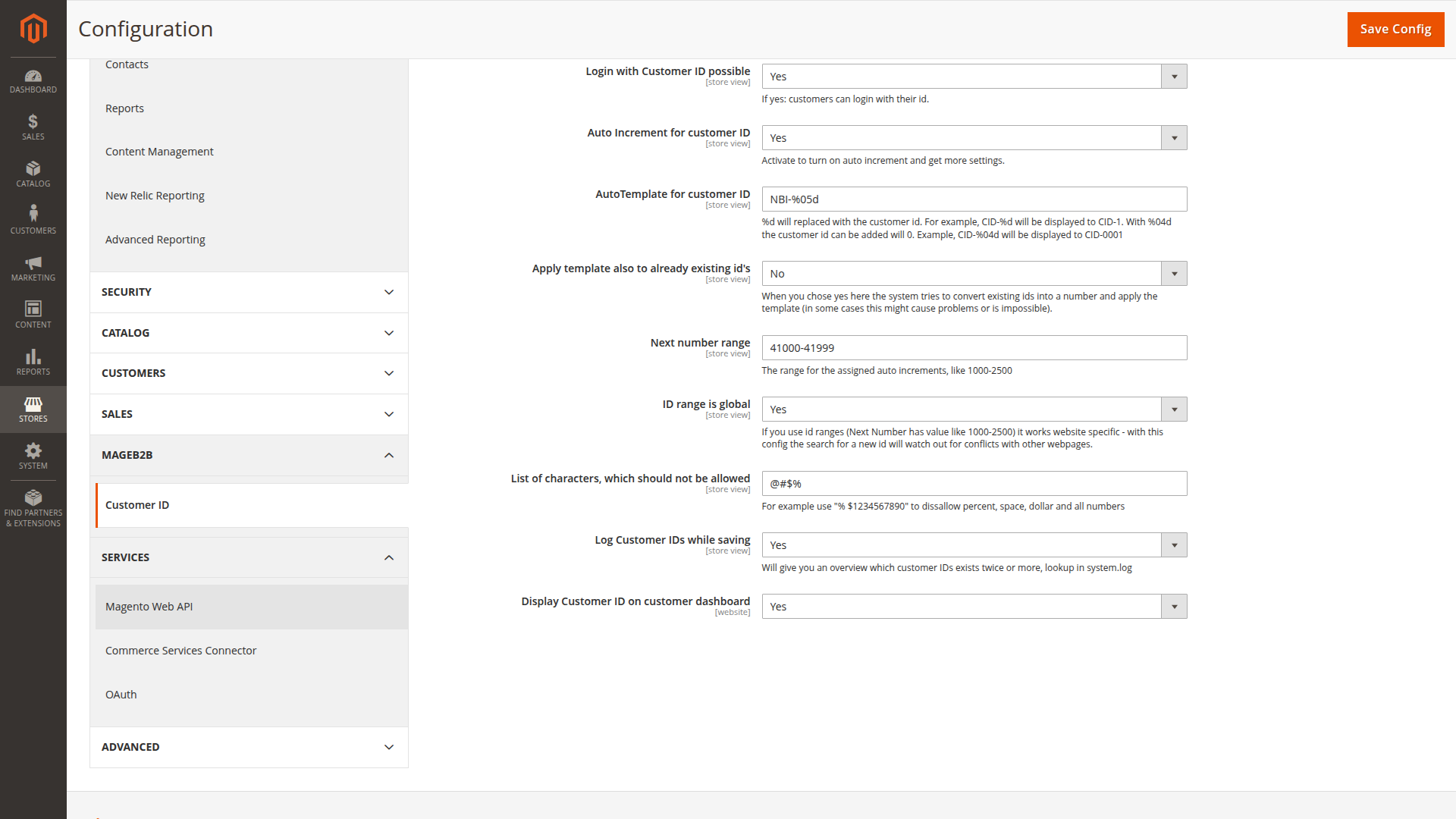
Shipped defaults
A fresh installation enables Login with Customer ID possible and Auto increment for customer ID, starts numbering at 1 with the plain %d template, and leaves dashboard display and duplicate logging off. Review these before your first customer is created — the login option is on by default.
Recommended first setup
For a single website that wants numbers such as B2B-01000:
| Setting | Value |
|---|---|
| Login with Customer ID possible | Yes, if customers should use the number to sign in |
| Auto increment for customer ID | Yes |
| Auto template for customer ID | B2B-%05d |
| Apply template also to already existing IDs | No |
| Next number range | 1000-9999 |
| ID range is global | No for one website; review carefully for several websites |
| Disallowed characters | Leave empty unless your integration requires a restricted character set |
| Log Customer IDs while saving | No; enable temporarily when investigating duplicates |
| Display Customer ID on customer dashboard | Yes if customers need to quote it to your team |
Create a staging customer after saving and confirm the resulting ID before importing or editing production accounts.
Setting reference
Login with Customer ID possible
When enabled, a storefront username without @ is treated as a possible customer ID. Email login remains available and Magento still validates the normal customer password.
Auto increment for customer ID
When enabled, a new customer without a number receives the next free formatted ID. When disabled, Magento leaves the field empty unless an administrator or integration supplies a value.
Auto template for customer ID
The template must contain one integer placeholder such as %d, %04d or %06d. Prefixes and suffixes may be literal text. See Template formatting.
Apply template also to already existing IDs
When enabled, the Admin customer form attempts to extract a number from an existing value and presents it with the current template. For example, 42 can appear as B2B-0042. Values without a usable numeric part remain unchanged.
Treat this as a migration aid, not a bulk conversion tool. Test representative IDs first and check downstream systems before saving changed customers.
Next number range
Use 1000-2500 to restrict automatic allocation to that inclusive range. Magento searches for the first free number in the configured scope. When the range is full, the customer save shows a warning and no new number is assigned.
In non-range mode, the live next number is held as internal increment state per website's default store code. Do not assume that changing a single number in this field resets an established counter. If a live sequence must be moved, verify the current state in staging and contact support instead of editing database records directly.
ID range is global
This setting affects the search for automatically generated IDs. When disabled, another website may reuse the same generated value. When enabled, allocation checks other websites as well.
Manual duplicate validation remains website-scoped. If every website must share one business-wide namespace, enforce the same policy in imports and external integrations too.
Disallowed characters
Enter the individual characters that must not appear. A value such as % $ blocks the percent sign, spaces and the dollar sign. The field is not a regular expression. If an edited value contains a blocked character, Magento keeps the previous customer ID and shows a warning.
Log Customer IDs while saving
Duplicate IDs are always rejected within the current website. This switch only controls whether the blocked attempt is also written as a warning to Magento's standard log, normally var/log/system.log.
Display Customer ID on customer dashboard
Adds the value to the signed-in customer's account dashboard. It does not automatically add the number to every account page, invoice PDF or email template.
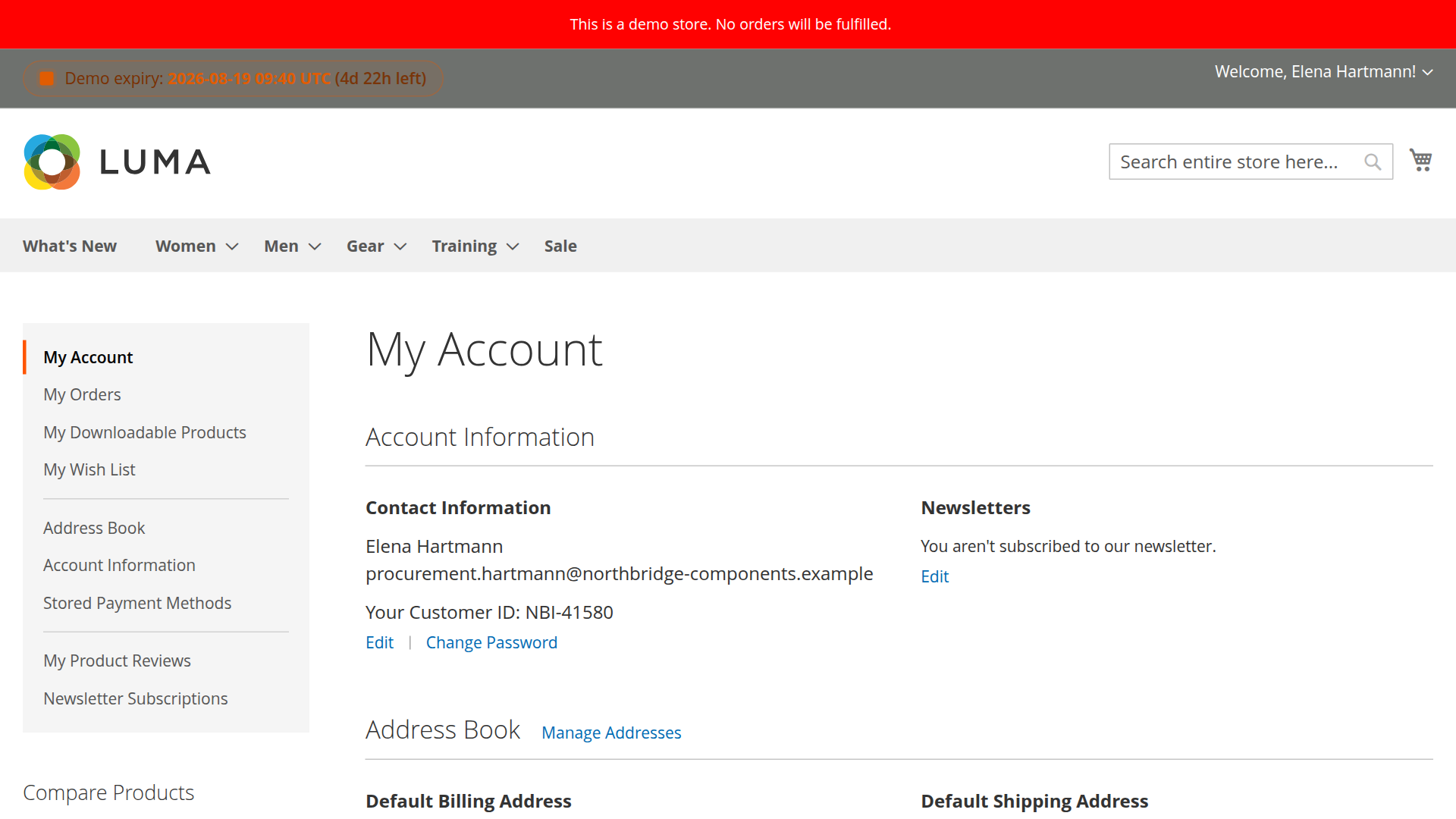
Safe rollout checklist
- Export or otherwise record existing customer numbers.
- Decide whether numbers may repeat across websites.
- Test the template and range with new staging customers.
- Verify manual edits, storefront login and an order placed by a registered customer.
- Confirm that ERP, CRM and email templates read the correct field names.
See Range management for multi-website examples.