Email Notifications
Automatically notify customers when new documents are available. The email notification system uses a queue-based approach with retry logic and delivery tracking.
How It Works
- Queue Creation - When a document is saved with "Send Email" enabled, notification entries are created for all assigned customers
- Cron Processing - The
SendDocumentNotificationcron job processes pending notifications in batches of 100 - Email Delivery - Emails are sent with configurable templates, CC/BCC recipients, and optional file attachments
- Status Tracking - The system tracks delivery status (pending/sent/failed) and retry attempts
Configuration
Email Settings
Navigate to Stores >Configuration > MageB2B > Customer Documents > Email Settings.
Email Sender
Select which store email identity to use as the sender (General Contact, Sales Representative, etc.)
Email Template
Choose the email template for document notifications. You can customize this template under Marketing >Email Templates.
CC Receivers
Enter email addresses to receive copies of all notifications. Separate multiple addresses with semicolons (;).
Example: manager@example.com;admin@example.com
BCC Receivers
Enter email addresses for blind carbon copies. Recipients won't see each other's addresses.
Add File as Attachment
Enable this to attach the document file to the email (subject to size limits).
File Attachment Settings
Maximum Email Attachment Size
Set the maximum file size (in MB) for email attachments:
Path: Stores > Configuration > MageB2B > Customer Documents > General Settings > Maximum Email Attachment Size (MB)
- 0 = No limit (not recommended - may cause mail server issues)
- Recommended: 5-10 MB
- Files larger than this limit will not be attached to emails
Why limit attachment size?
- Prevents mail server rejection
- Avoids inbox quota issues
- Improves email delivery reliability
Sending Notifications
Manual Sending (Admin)
- Navigate to Customers >Customer Documents > All Documents
- Select documents using checkboxes
- Choose Actions >Send Email
- Click Submit
- Notifications are queued and will be sent by the next cron run
Automatic Sending (On Save)
When creating or editing a document:
- Enable the Send Email checkbox in the document form
- Save the document
- Notifications are automatically queued for all assigned customers
Notification Queue
Viewing the Queue
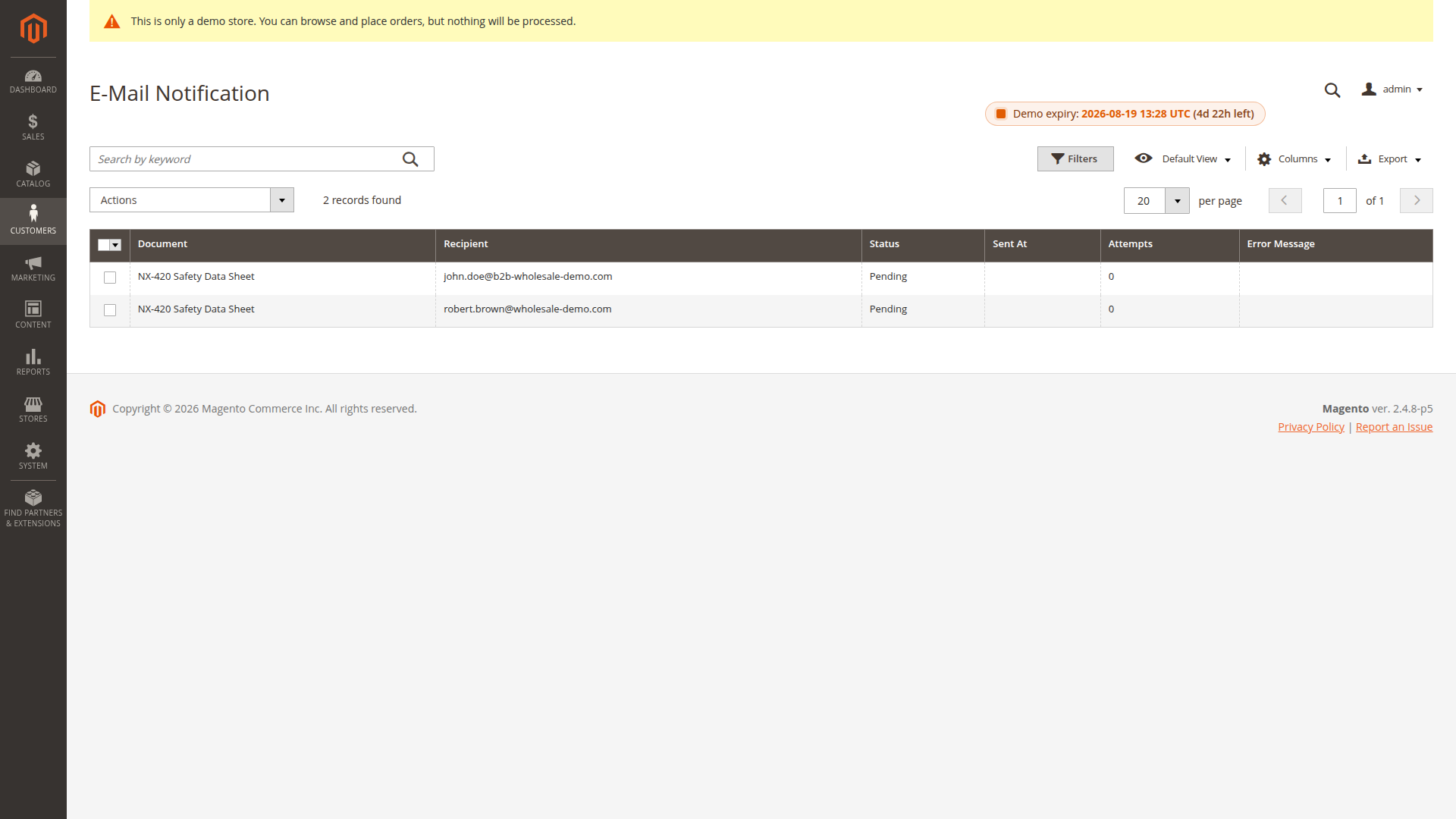
Navigate to Customers >Customer Documents > E-Mail Notification to see:
- Document name
- Customer email
- Status (Pending/Sent/Failed)
- Attempt count
- Created/Sent timestamps
- Error messages (if failed)
You can also re-send selected records from this grid using the available mass action.
Status Types
| Status | Description |
|---|---|
| Pending | Waiting to be sent by cron job |
| Sent | Successfully delivered |
| Failed | Delivery failed after 3 attempts |
Retry Logic
- Maximum attempts: 3
- Batch size: 100 notifications per cron run
- Retry interval: Next cron execution (every 30 minutes by default)
Cron Job
SendDocumentNotification
Schedule: Every 30 minutes (*/30 * * * *)
What it does:
- Fetches pending notifications (max 100 per run)
- Loads document and customer data
- Checks file size against attachment limit
- Sends email with or without attachment
- Updates notification status
- Logs statistics
Monitoring
Check cron execution logs:
tail -f var/log/system.log | grep "Document notification"View statistics in logs:
Document Notification Statistics: {"Pending": 45, "Sent": 1203, "Failed": 12}Email Template Variables
When customizing email templates, you can use these variables:
| Variable | Description |
|---|---|
{{var customerdocument.name}} | Document name |
{{var customerdocument.description}} | Document description |
{{var customer_firstname}} | Customer first name |
{{var customer_lastname}} | Customer last name |
{{var customer_email}} | Customer email |
Cleanup
Delete Old Notifications
Configure automatic cleanup of old notifications:
Path: Stores > Configuration > MageB2B > Customer Documents > General Settings > Delete notifications after X days
- Pending/Sent/Failed notifications older than X days will be deleted
- Helps keep the database clean
- Recommended: 30-90 days
Troubleshooting
Emails Not Sending
Check cron execution:
php bin/magento cron:runVerify email configuration:
- Stores >Configuration > General > Store Email Addresses
- Test with a simple Magento email (password reset, order confirmation)
Check notification queue:
- Navigate to Email Notifications grid
- Look for error messages in failed notifications
Attachments Not Included
File too large:
- Check the file size against your configured limit
- Increase the limit or reduce file size
External documents:
- External URLs (is_external = 1) cannot be attached
- Only local files can be attached to emails
File missing:
- Verify the file exists on the filesystem
- Check the upload path configuration
High Failure Rate
Mail server limits:
- Your mail server may have rate limits
- Stagger large sends and monitor SMTP/provider limits
Invalid email addresses:
- Check customer email addresses for typos
- Clean up invalid addresses in customer data
Attachment size:
- Large attachments may be rejected by recipient mail servers
- Reduce the maximum attachment size limit
Best Practices
- Test email templates - Send test emails before mass notifications
- Monitor the queue - Regularly check for failed notifications
- Set reasonable limits - Keep attachment size under 10 MB
- Use BCC for monitoring - Add admin email to BCC for oversight
- Clean up old notifications - Enable automatic cleanup to maintain performance
- Don't send too frequently - Respect customer preferences and avoid spam
- Don't attach huge files - Use download links instead of large attachments
Related Features
- Access Control - Control who receives notifications
- Password Protection - Secure document downloads
- Link Documents - Link documents to orders/invoices