
Configure Digital Product Passports
Open Stores > Configuration > MageB2B > Digital Product Passport and select the scope used by the storefront.
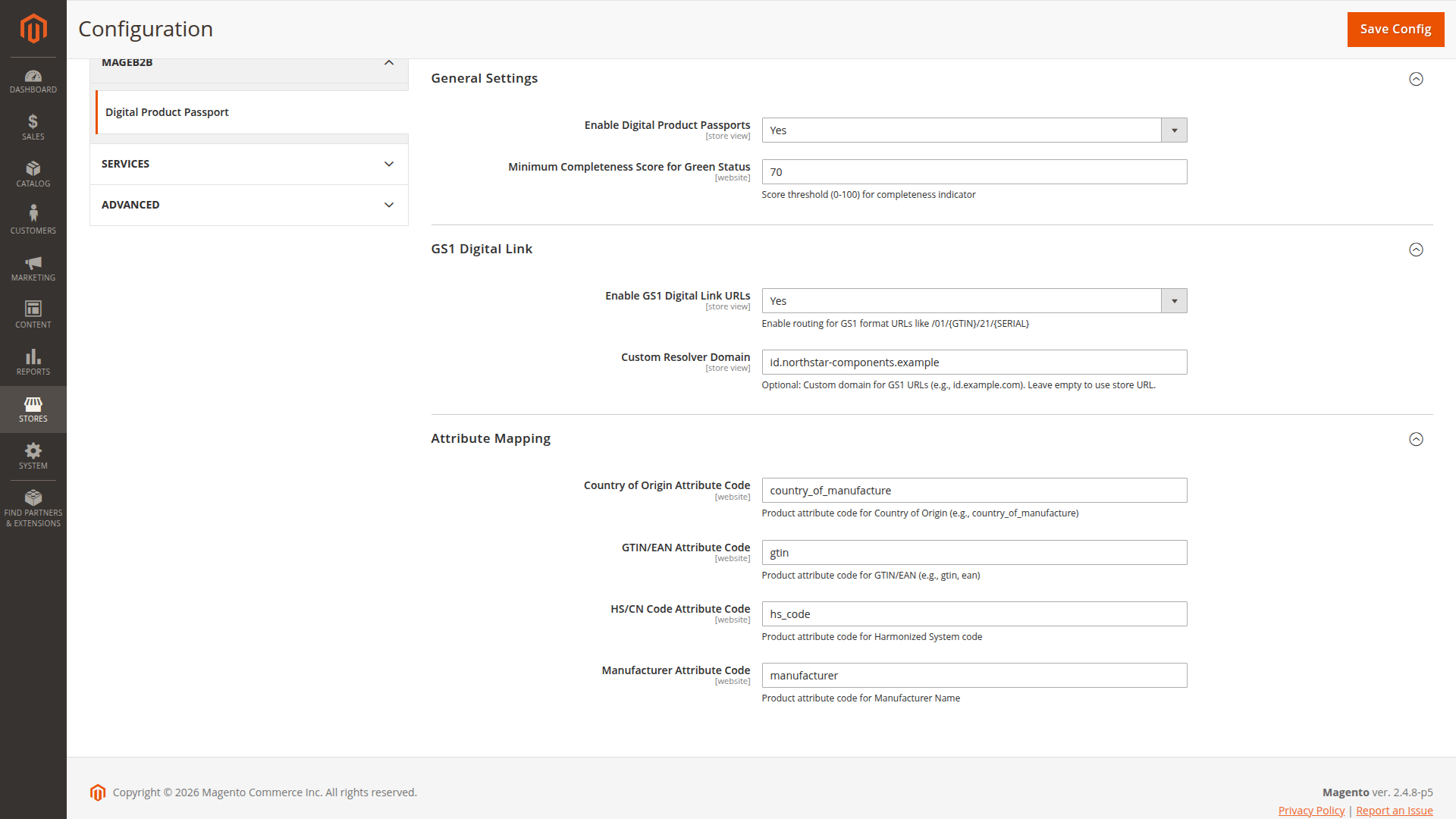
General Settings
Enable Digital Product Passports
When disabled, the passport fieldset is removed from the product form. Review storefront and API behavior as part of your change process before disabling an established publication channel.
Minimum Completeness Score for Green Status
Enter a number from 0 to 100. The default is 70. Records below a positive threshold appear in the DPP Quality Report.
If the product form is saved without an explicit status, the score can derive the status: a score at or above a positive threshold becomes Published; otherwise it becomes Draft. Selecting a status explicitly takes precedence, but Published still requires a valid payload and template schema.
The score is an operational indicator, not a compliance grade.
The score has seven equally weighted checks. A Generic passport cannot receive the non-default-template point, and a model-level passport cannot receive the batch or serial points. A complete Generic model-level passport therefore reaches five of seven checks, which rounds to 71%. With the default threshold of 70, one missing check leaves that passport below the publication threshold. Choose the threshold for the passport types used in the catalog instead of treating 70 as a universal completeness target.
GS1 Digital Link
Enable GS1 Digital Link URLs to let the storefront router resolve paths beginning with /01/. Leave it disabled if you only need the standard passport URL.
Custom Resolver Domain changes the host used when the extension generates GS1 links. It does not configure DNS, TLS or reverse-proxy routing for that host. Set up the external domain so that its requests reach the Magento storefront before publishing QR codes that use it.
Attribute Mapping
Enter Magento product attribute codes for:
- country of origin;
- GTIN or EAN;
- HS or CN code;
- manufacturer.
Country and HS mappings can prefill a new product passport. GTIN and manufacturer mappings are used when generating identifiers and JSON-LD. If no GTIN mapping is configured, the extension also checks common attribute codes such as gtin, ean, upc and barcode. The shipped defaults map Country of Origin to country_of_manufacture and Manufacturer to manufacturer — adjust them if your catalog uses different attribute codes.
Mappings are attribute codes, not the visible attribute labels. Verify the stored values and scope on a real catalog product.
Scope
Most switches are available through store-view scope. The completeness threshold and attribute mapping fields stop at website scope. Passport records themselves carry a store ID, and public JSON-LD and QR URLs use that passport's store context.
Go-live check
- Confirm the enabled flag in every intended storefront scope.
- Verify each mapped attribute exists and contains the expected raw value.
- Keep the default templates active unless the publication process replaces them.
- Create a Draft passport first.
- Test standard and GS1 URLs in the correct store.
- Test anonymous REST and GraphQL output because published data is public.
Configuration reference
| Config path | Admin label |
|---|---|
dpp/general/enabled |
Enable Digital Product Passports |
dpp/general/min_completeness_score |
Minimum Completeness Score for Green Status |
dpp/gs1/use_gs1_format |
Enable GS1 Digital Link URLs |
dpp/gs1/custom_domain |
Custom Resolver Domain |
dpp/attribute_mapping/country_of_origin |
Country of Origin Attribute Code |
dpp/attribute_mapping/gtin |
GTIN/EAN Attribute Code |
dpp/attribute_mapping/hs_code |
HS/CN Code Attribute Code |
dpp/attribute_mapping/manufacturer |
Manufacturer Attribute Code |