
Create the First Passport
Create the first record as Draft, review the JSON against its template, and publish only after the data owner approves it.
1. Choose the product
Open Catalog > Products, edit the product and expand Digital Product Passport.
The form has no passport-store selector and loads one existing passport record at a time. A product can have separate database records for model, batch or serial identifiers and stores, but the standard product form is not a bulk or multi-record editor. Use a controlled integration when one SKU needs many batch-, item- or store-specific records.
2. Select a template
Choose an active template:
- Generic DPP Template (ESPR)
- Textile DPP Template (ESPR/CIRPASS)
- Battery Passport (EU Battery Regulation)
The template determines the JSON schema enforced at publication. Its name is descriptive and does not certify that a product meets a regulation.
3. Enter identifiers and classification
Fill the fields that apply:
- ESPR category
- HS/CN code
- two-letter country of origin
- batch ID
- serial number
Leave batch and serial empty for a model-level record. Use a batch ID for batch-level identification or a serial number for an item-level record. When both are supplied, generated GS1 links prefer the serial number.
4. Add the JSON payload
Enter valid JSON in DPP Payload (JSON). The property names and nesting must follow the selected template schema. For example, the Generic schema requires a productIdentification object containing productName.
Save as Draft while preparing data. Draft and Active records may contain no payload or may lack a template schema, but malformed JSON is rejected whenever a non-empty payload is saved.
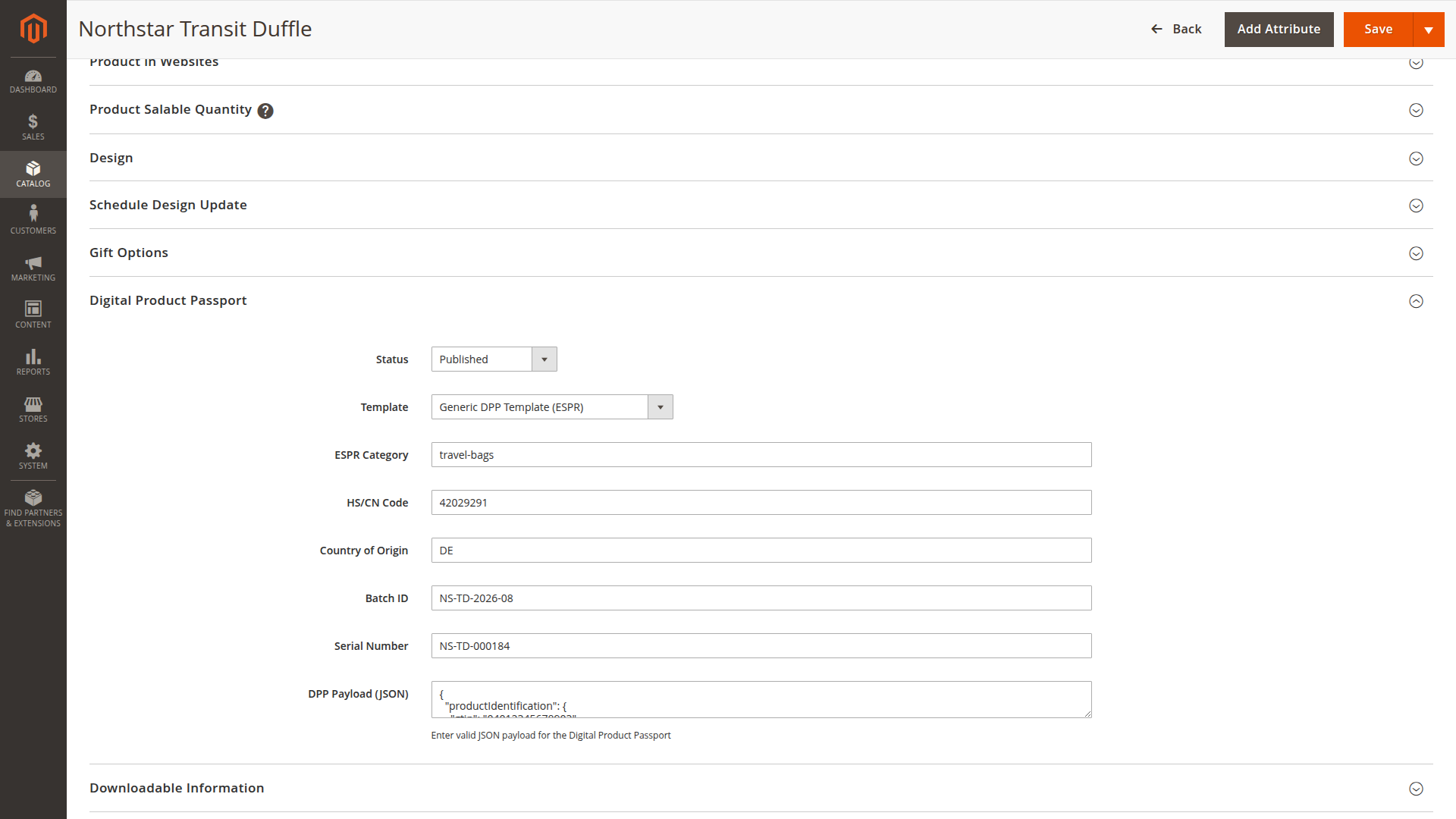
5. Publish
Set status to Published only when:
- the payload is valid JSON;
- the selected template exists and contains a schema definition;
- the payload satisfies that schema;
- the business owner has approved the content for public use.
On first publication, the record receives a publication timestamp. Later saves increment its internal version counter.
The passport grid is useful for checking status, store, template and completeness across products before you review the public output.
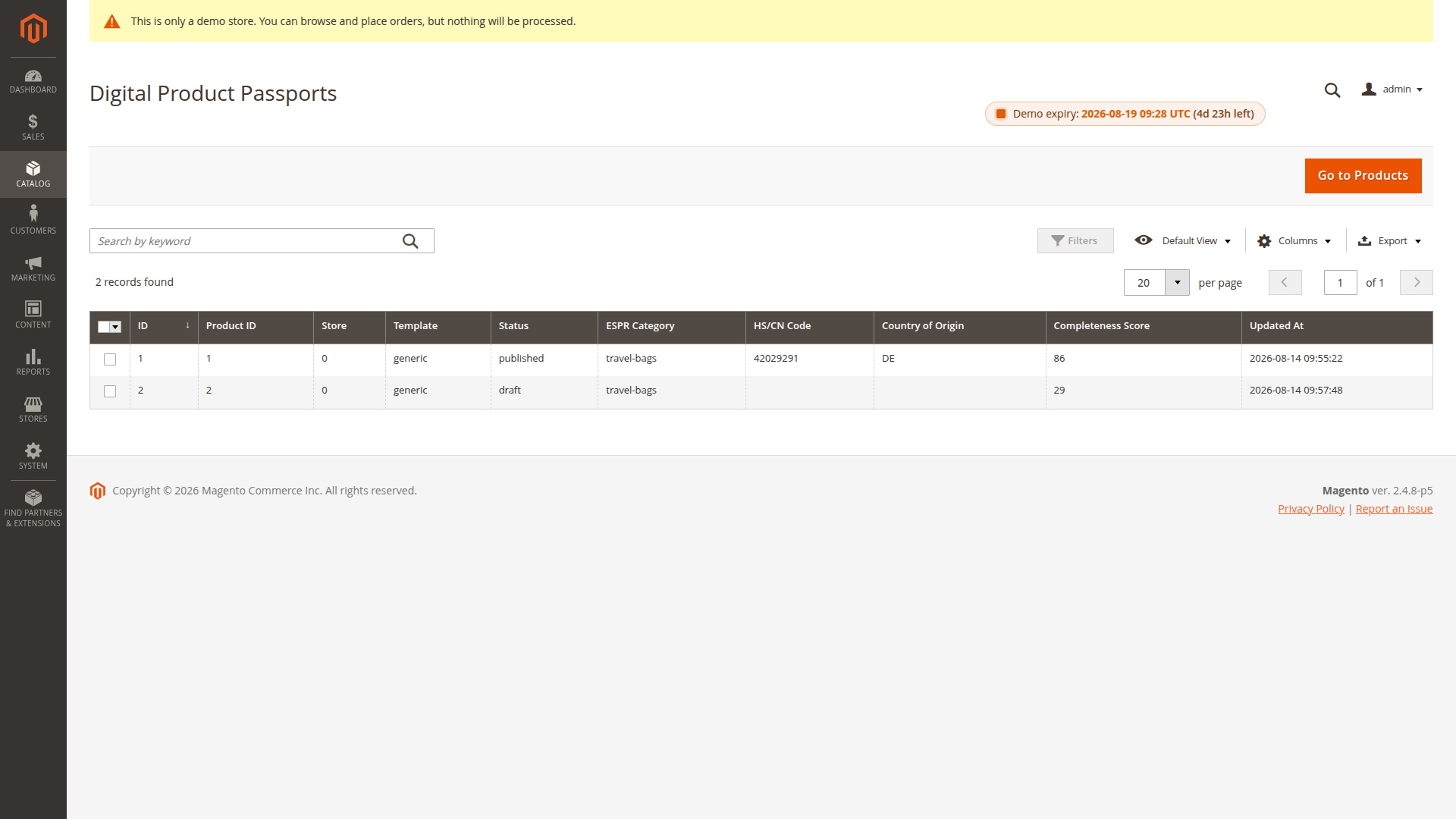
6. Verify public output
Check the product-page passport link, the standard page at /dpp/index/view/id/{passport_id}, the QR image and any required APIs. Draft, Active and Archived records are excluded from public API and QR output.
Next, review public views and QR codes and GS1 paths.