
Customer Assignment
Customer assignment is the main access boundary in Sales Staff. A representative sees the customers assigned to their Staff account unless Access All Customers is enabled. Website and configured customer-group restrictions still apply.
Choose an ownership model
With Can customer have multiple staff disabled, use assignment as single-representative ownership. This is a good fit for territories or named-account sales.
Enable it when several representatives must work with the same customer, for example an account manager and an inside-sales colleague. Decide which assignment is considered primary because customer-facing representative details and permanent order attribution can depend on it.
Access All Customers bypasses the individual assignment list inside the Staff website. Reserve it for roles that genuinely need the whole portfolio; it should not be used as a shortcut when assignments are incomplete.
Assign customers
The Staff edit form contains a customer grid for selecting customers and reviewing existing relations. Supported customer-side and mass actions may also set a primary representative, depending on the enabled Admin configuration and grid integration.
For a small portfolio:
- Open Staff > All Staff.
- Edit the representative.
- Select the intended customers in the customer grid.
- Save and reopen the Staff account.
- Sign in as that representative and verify one assigned and one unassigned customer.
For bulk maintenance, use the Import and Export add-on or REST and SOAP API. Test the mapping on a few fictional records before updating a live portfolio.
Assignment comments
Each Staff-customer relation can store a comment. Use it for short operational context such as Primary contact: procurement or Covering while Elena is on leave, not for secrets or a full CRM history.
Show comments in my customers list is enabled by default. For longer conversations, files and structured topics, use Customer History.
Customer search
The Staff customer grid always supports core identity search and can expose configured filters for billing address, shipping address and assignment comments. Optional settings add an external customer ID attribute, restrict address matching to default addresses, and control whether the list appears before a search.
The example below narrows Daniel Weber's assigned portfolio by billing company and returns Elena Fischer with the matching Alpine Industrial Solutions address.
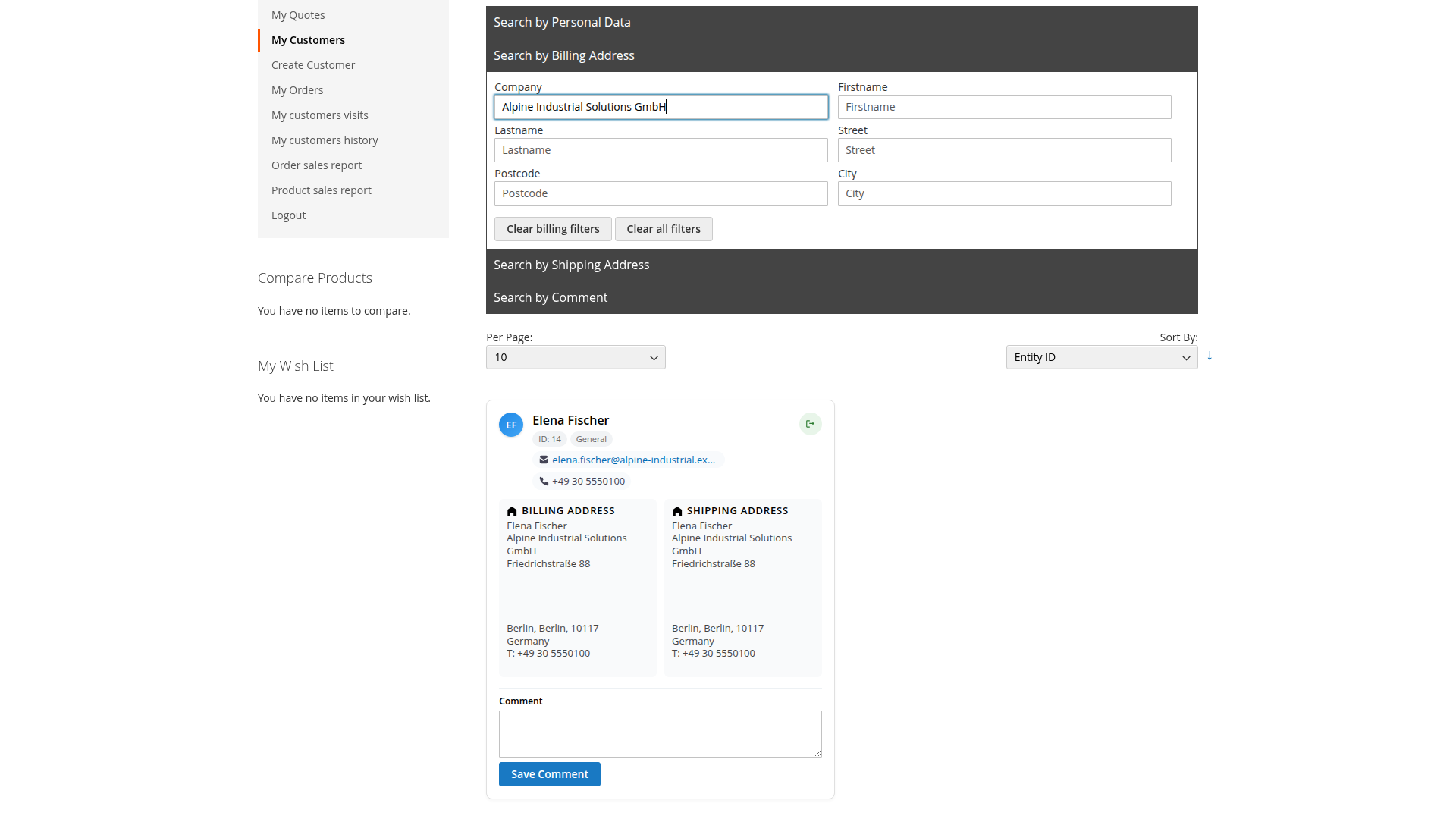
For large portfolios, disable Show all assigned customers by default so a representative searches before loading results. Keep the page-size limiter enabled unless there is a measured reason to expose every record on one page.
Remove or transfer an assignment
Removing a customer from Staff removes the relationship; it does not delete the Magento customer. If Staff-side removal is needed, enable Can staff delete his own customers only for representatives allowed to manage their portfolio.
For a handover:
- add the new representative first when multiple assignments are allowed
- verify the new representative can access the customer
- set or confirm the intended primary ownership
- review open orders, quotes, visits and history records
- remove the former assignment
- deactivate the old Staff account if the person has left
Changing the current assignment does not rewrite Staff data stored on historical orders.
Customer self-reassignment
Can customer reassign own account to another Sales Staff is disabled by default. Enable it only when customers are genuinely allowed to choose their representative. Territory- or contract-based ownership normally needs an internal approval process instead.
Common problems
An assigned customer is not visible
Check the Staff website, customer website, customer-group restrictions, active search filters and whether the assignment was saved. If Show all assigned customers by default is off, apply a search before expecting rows.
The representative sees too many customers
Check Access All Customers first. Then review multiple-assignment mode, customer-group restrictions and any bulk import or API job that manages relations.
Removing a customer did not delete the account
That is intentional. Sales Staff removes only its relation. Customer deletion remains a separate Magento Admin operation with much broader consequences.
The wrong representative appears on an order
Review who placed the order, which Staff account was primary at the time and whether Set staff permanently on order is enabled. The reports use the Staff values stored on the order, not only today's assignment.
Related: Staff Groups, Customer Impersonation and Sales Reports.