
Configuration
Sales Staff is configured under Stores > Configuration > MageB2B > Staff. Most settings support website or store-view scope. Set the scope selector before saving when a Magento installation serves more than one sales organization.
Configure access around a real workflow first: who may see which customers, which actions they may perform, how orders are attributed, and which emails should leave the store.
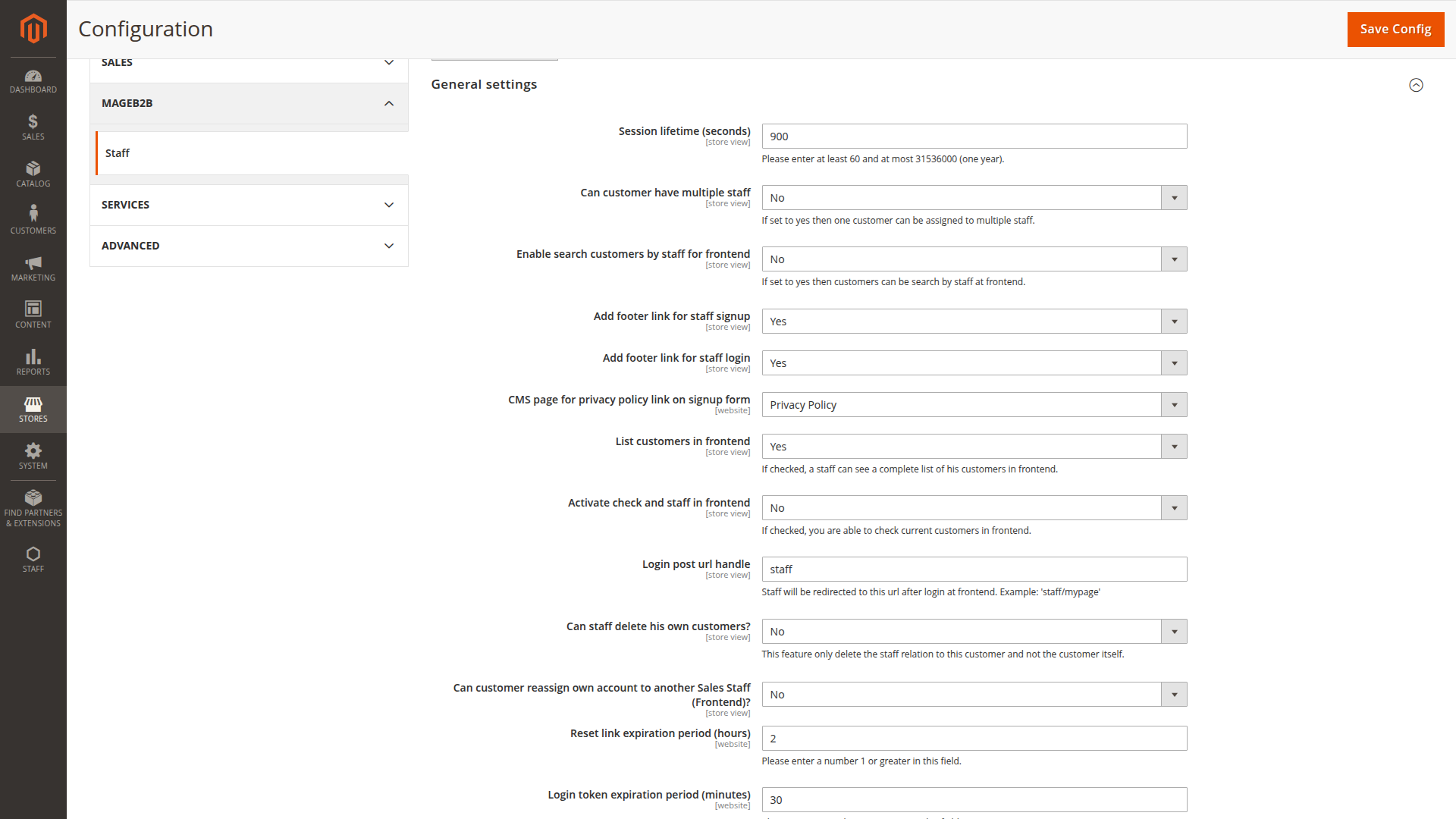
General settings
Session and sign-in
- Session lifetime: 900 seconds by default; accepted range is 60 seconds to one year.
- Login post URL handle:
staffby default. Use an internal route handle such asstaff/customers, never an external URL. - Reset link expiration: two hours by default.
- Login token expiration: 30 minutes by default.
- Minimum password length: eight characters by default.
- Required character classes: three of lowercase, uppercase, digits and special characters by default.
- Not allowed handles: blocks Staff context from selected storefront handles. The shipped list includes
customer_account_login.
Use the shortest session that remains practical for representatives on shared or mobile devices. Do not lengthen sessions to compensate for a broken sign-in flow.
Staff signup and login links
The footer signup and login links are enabled by default. The signup form also links to the selected privacy-policy CMS page.
Public Staff signup creates an account that still follows the extension's activation flow. If representatives are provisioned only by administrators or SAML, hide the signup link. Hiding the footer link is not a substitute for controlling who can activate and use an account.
Customer assignment and listing
- Can customer have multiple staff: enables multiple assignments for one customer.
- List customers in frontend: enabled by default.
- Show all assigned customers by default: enabled by default; disable it when large portfolios should appear only after a search.
- Enable search customers by staff: adds Staff-related search criteria to the customer grid.
- Activate check and staff in frontend: exposes the email-based customer lookup/addition block.
- Can staff delete his own customers: disabled by default. This removes only the Staff-customer relation, not the Magento customer.
- Can customer reassign own account: disabled by default.
- Restrict customer groups: limits which Magento customer groups representatives may work with.
- Default Staff Group: applied when a new Staff account has no explicit group.
Choose single or multiple assignment before importing a large customer portfolio. Changing the policy later can change how primary ownership and order attribution are interpreted.
Customer grid and dashboard
The customer grid can show assignment comments, an external customer ID attribute and configurable search filters. The shipped filter set includes billing address, shipping address and assignment comment. Address filters can be restricted to default billing or shipping addresses, and the page-size selector is enabled by default.
Display staff in customer dashboard is disabled by default. When enabled, Display primary staff account only limits the customer-facing block to the primary representative. Upload a neutral, approved profile image as the default for representatives without their own image.
Price and order attribution controls
- Allow 0 Price on Item Price Edit: disabled by default. Enable only for a documented free-item or replacement process.
- Set staff permanently on order: disabled by default. When enabled, the customer's primary Staff account can be written to an order even when the representative did not place it.
The permanent attribution setting changes the meaning of Staff reports and commission ownership. Agree on that rule with sales operations before enabling it.
Commission settings
The representative's percentage is stored on the Staff account. Choose one calculation basis:
- net total excluding tax
- net total including tax
- product-level discount
Show commission for Staff is disabled by default. Enable it when representatives should see their percentage and order commission values in the storefront Staff area.
See Commission System for calculation and audit considerations.
Reports
Show sales report for staff in frontend is enabled by default. It controls the order and product report links in the Staff account. Admin report access is controlled separately by ACL permissions.
Reports are part of the base extension. No Reports add-on is required.
Magento Admin order grid
Both options are disabled by default:
- Add Sales Staff to Order Grid adds Staff information to the sales-order grid.
- Add Reassign feature for Sales Staff to Order Grid adds a mass action for changing order attribution.
Grant reassignment only to roles that are allowed to change ownership and commission reporting.
Customer registration by Staff
Frontend customer creation is enabled by default. The customer-group, address and VAT fields are also shown by default, and Staff may set the customer's password by default.
Review these settings together with each representative's Can Create Customer permission and the restricted customer-group list. For a safer onboarding flow, let the customer set their password through the account email instead of sharing a password chosen by Staff.
Staff order management
Only orders in the New state are editable by default. The configuration can also allow Pending Payment, Processing, Complete, Closed, Canceled, Holded or Payment Review, but selecting a state does not guarantee that every Magento or payment operation is safe to repeat.
The following bypasses are disabled by default:
- disregard minimum order amount
- disregard minimum and maximum sale quantity rules
- allow backorders for Staff orders
Expand the allowed states and bypasses only after testing stock, payment, tax, invoice and shipment behavior for the store's actual extensions.
Email settings
Activated Emails is a global allowlist for Staff templates. The base selection includes new account, customer password setup, activation, deactivation, forgotten password and password-updated messages. Optional Staff packages add their own templates to the list.
Order-email routing can send to nobody, the customer and Staff as recipients, the customer only, the customer with Staff as BCC, or Staff only. The default is customer only.
Other controls include:
- templates for Staff onboarding and password events
- CC and BCC recipients for Staff emails
- a copy to the assigned representative when the customer orders directly; this depends on permanent Staff attribution
- a fixed store view for order email
- the representative name/email line inserted into selected order templates
Send plain password in staff account emails is disabled by default. Leave it disabled. Password setup and reset links are safer and easier to revoke.
After changing email settings, test one activation, one password reset, one Staff-created customer and one Staff-attributed order in a non-production mailbox.
Pricesystem integration
Display additional pricesystem prices is disabled by default. When the compatible SoftwareSilo Pricesystem core package is installed, it can show available Pricesystem prices as a selector during Staff cart-price editing.
If Pricesystem is absent, leave this option disabled. It is not a standalone Staff pricing engine.
Configuration checklist
Before activating representatives:
- Confirm store scope, session and password policy.
- Decide whether customer assignment is single or multiple.
- Create the Staff groups and select the default.
- Review customer-list, lookup, creation and reassignment controls.
- Review each Staff account's operational permissions.
- Decide how orders are attributed and commissions calculated.
- Keep order-edit bypasses off unless a tested process requires them.
- Verify the activated email templates and recipients.
- Test an assigned customer from Staff sign-in through order and report.
Continue with Create Your First Staff Account.