
Create Your First Staff Account
Start with one representative and one fictional customer in staging. This exposes assignment, email and order-attribution mistakes before a full sales team is imported.
1. Create a Staff group
Open Staff > Staff Groups, choose Add New Group, enter a name such as Field Sales and save it.
Groups organize Staff accounts and are stored with Staff-attributed orders. They do not grant a bundle of operational permissions by themselves; those are selected on the Staff account.
2. Add the representative
Open Staff > All Staff and choose Add New Staff. Use a fictional staging identity such as:
- Daniel Weber
daniel.weber@salesdesk.example- the website where his customers belong
- the Key Accounts Europe group
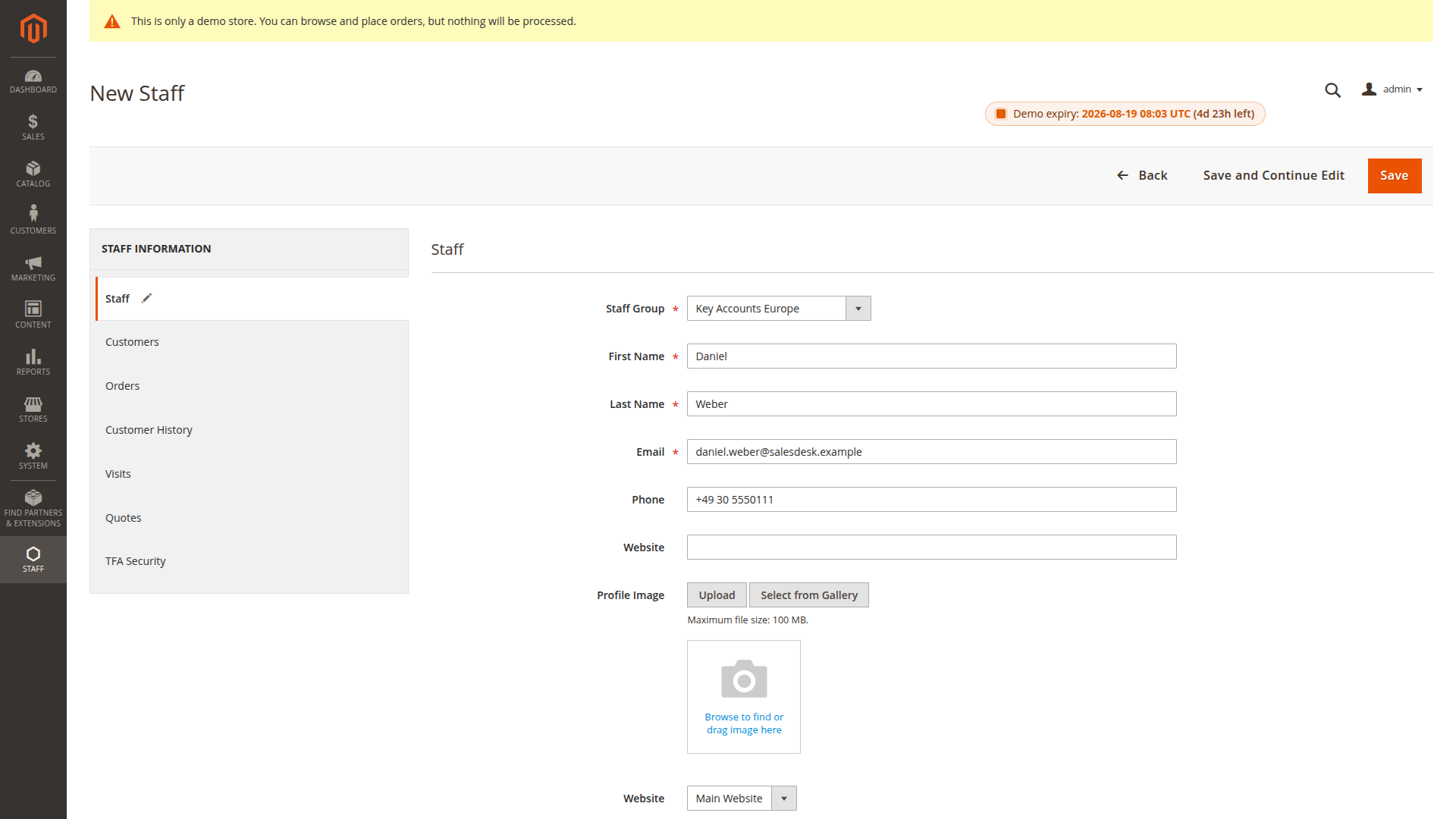
Set a unique password that meets the configured Staff password policy. Do not reuse Magento Admin or customer credentials.
Review each permission explicitly:
| Field | Meaning |
|---|---|
| Status | Only active Staff accounts can sign in |
| Access All Customers | Opens every customer in the Staff website; leave off for portfolio-based access |
| Can Edit Item Price | Lets the representative change cart item prices within the configured rules |
| Can Create Customer | Works together with the global customer-creation setting |
| Can Edit Orders | Works together with the globally allowed order states |
| Commission | Percentage used by the configured commission calculation |
Installed add-ons may add more fields, such as quote or customer-history permissions. Leave a permission off until the representative's job requires it.
The edit form also offers a Login as Staff button that opens the representative's storefront workspace in a new tab. It is controlled by the Admin ACL resource Staff > Login as Staff — restrict it like customer impersonation, because it bypasses the staff password.
Save the account. A new-account email is sent only when the relevant template is active and the creation path triggers that notification. Check the mailbox instead of assuming it was delivered.
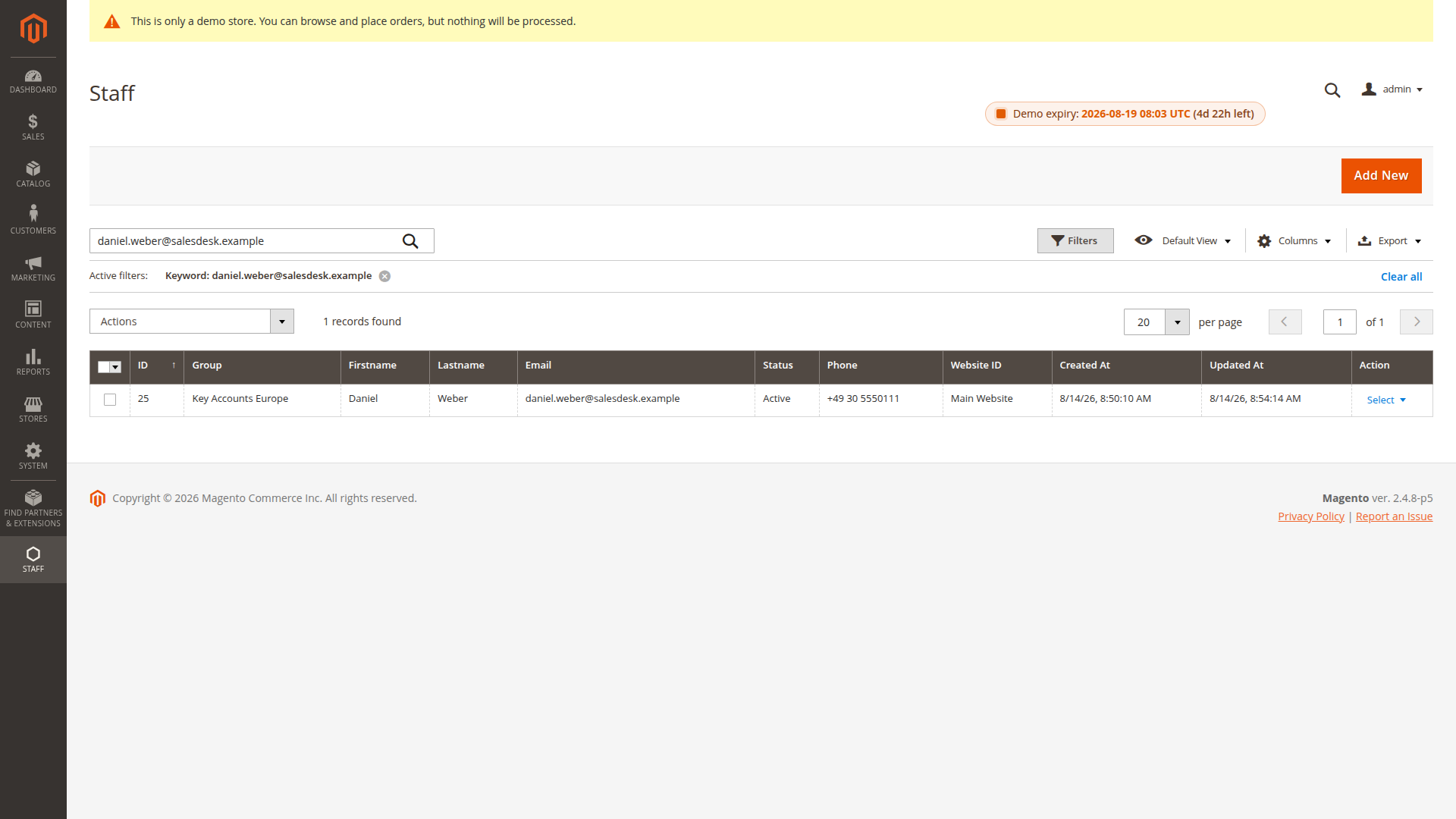
Use the filtered Staff grid to confirm the group, website, status and contact details before assigning customers.
3. Assign a customer
Edit the Staff account and use its customer grid to select an existing customer, or use the supported Staff assignment action on the Magento customer. Save, reopen the Staff record and confirm the customer remains assigned.
If Can customer have multiple staff is off, assigning another representative may change ownership rather than add a teammate. Test this rule before using mass assignment.
Do not enable Access All Customers just to bypass an assignment problem. It expands the account to every customer on its website.
4. Test Staff sign-in
Open the storefront route:
https://<store-domain>/staff/account/login
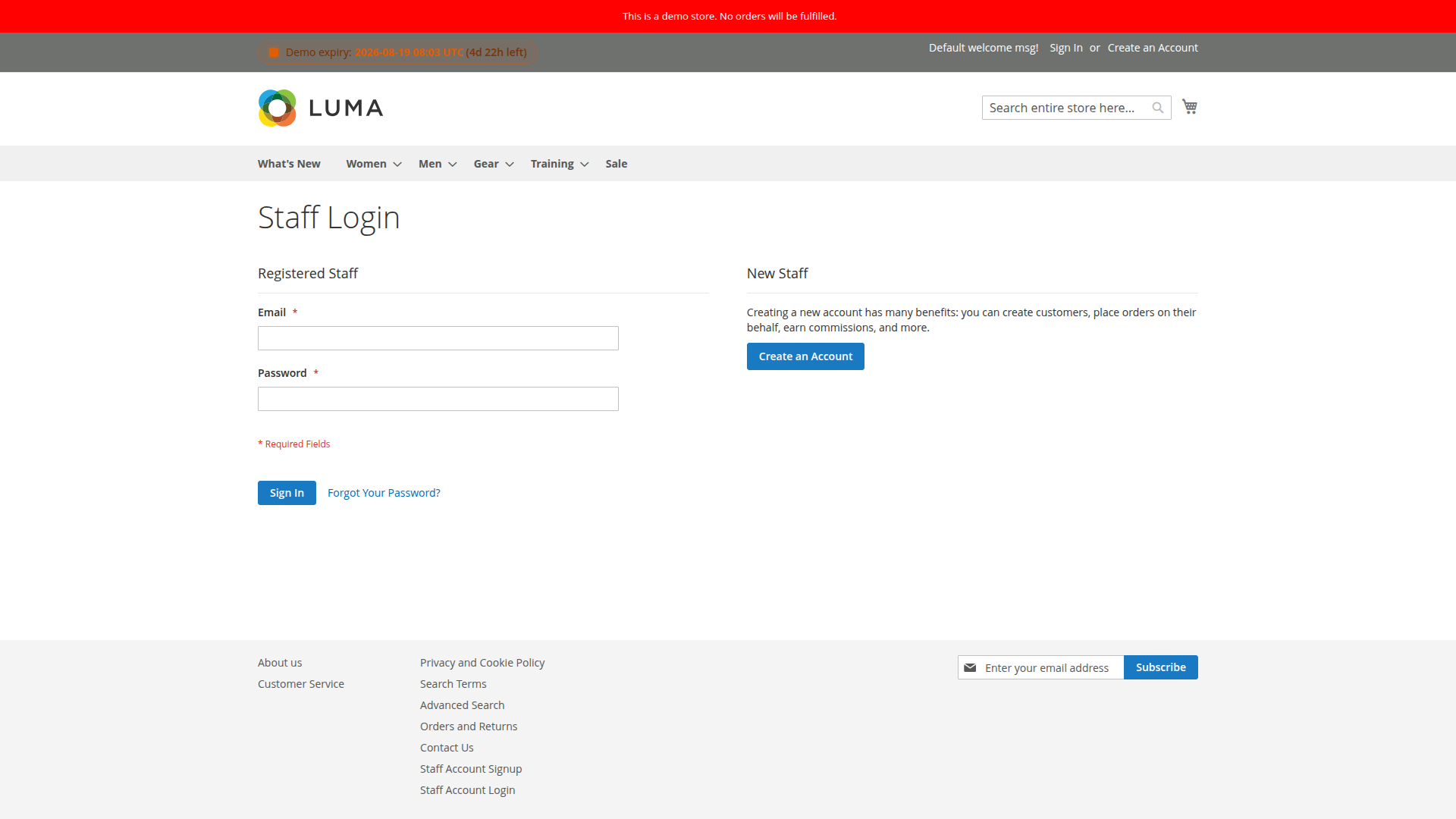
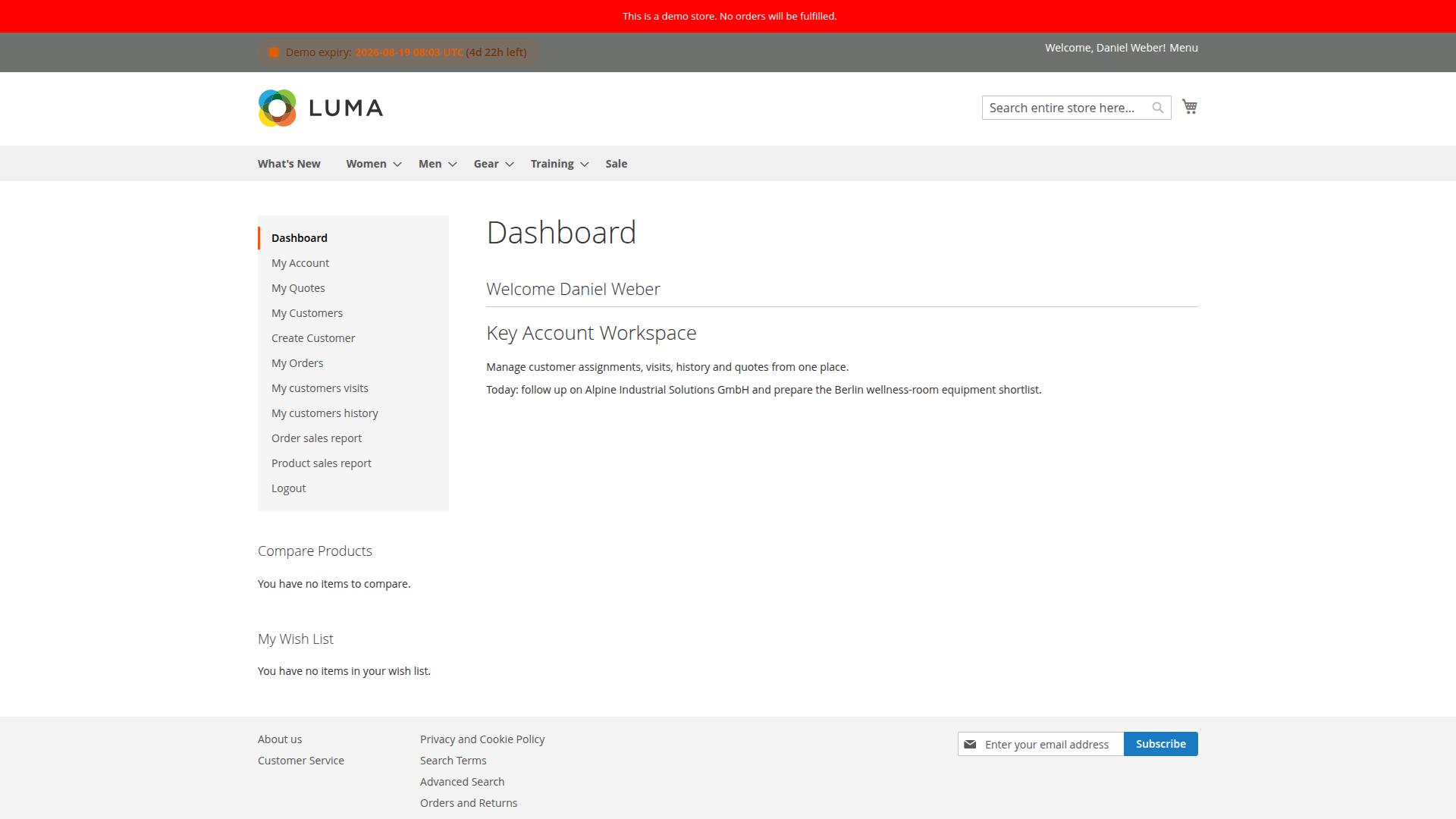
Sign in as Daniel. The Staff account should show its dashboard, assigned customers and Staff-attributed orders. Commission and report links appear only when their configuration permits them.
If sign-in fails, confirm the account is active, the email belongs to the selected website and the password was set through the current Staff flow.
After sign-in, the dashboard provides the representative's customer, quote, visit, history, order and report workflows.
5. Test customer context
- Open My Customers.
- Find the assigned fictional customer.
- Use Login to this account.
- Confirm the storefront now behaves as that customer and shows the customer's permitted catalog and prices.
- Add a normal product and place a test order using a safe offline payment method.
- Return through My Staff Account or the Staff logout-from-customer action.
The representative should never be able to enter an unassigned customer unless Access All Customers is enabled. Test that negative boundary with a second fictional customer.
6. Verify the order
Open the order in Magento Admin and confirm:
- the expected Staff ID and group were stored
- commission matches the configured calculation and representative percentage
- the order appears in the representative's order list and reports
- the intended customer and Staff recipients received email
If Set staff permanently on order is enabled, also place an order directly as the customer and confirm the primary representative is attributed according to your policy.
Activate, deactivate and hand over
Deactivate a departed or temporarily blocked representative immediately. An inactive Staff account cannot sign in. Customer records remain in Magento; you can reassign their Staff relationships to another representative.
Changing a Staff group or commission affects subsequent workflow, but historical orders keep the Staff data stored when they were created. Verify that behavior before using reports for compensation.
For a portfolio handover:
- export or record the current assignments
- assign the customers to the new representative
- verify a sample of customer access and primary ownership
- deactivate the old account
- check open quotes, visits or other add-on records that may still name the former representative
Before inviting the team
- Test activation and password reset email.
- Confirm Staff cannot reach Magento Admin.
- Confirm an assigned and an unassigned customer boundary.
- Test customer creation only if that permission will be used.
- Test a normal order and, if enabled, an editable order.
- Verify reports and commission with known values.
- Document who may edit prices, reassign customers and change ownership.
Next: Customer Assignment or Order Management.