
Configure SoftwareSilo Sublogin
Open Stores > Configuration > MageB2B > Sublogin. Choose the website or store view before changing values. Most settings are scope-aware, so an unexpected storefront result often comes from a website or store-view override rather than the default configuration.
Configure the base account journey first. Leave Roles, Budget and Order Approval at their defaults until a sublogin can sign in and complete a normal checkout.
Safe starting configuration
For a first staging test:
- enable Sublogin;
- keep Restrict order view for sublogins enabled;
- keep payment and shipping filters disabled;
- keep cart and wishlist sharing disabled;
- keep email confirmation and public signup disabled;
- allow parent-account impersonation for support testing;
- use all parent customer addresses or assign a small approved set;
- keep plain-password emails disabled.
This gives one buyer a clear, isolated journey without introducing approval, budget or method-filter failures at the same time.
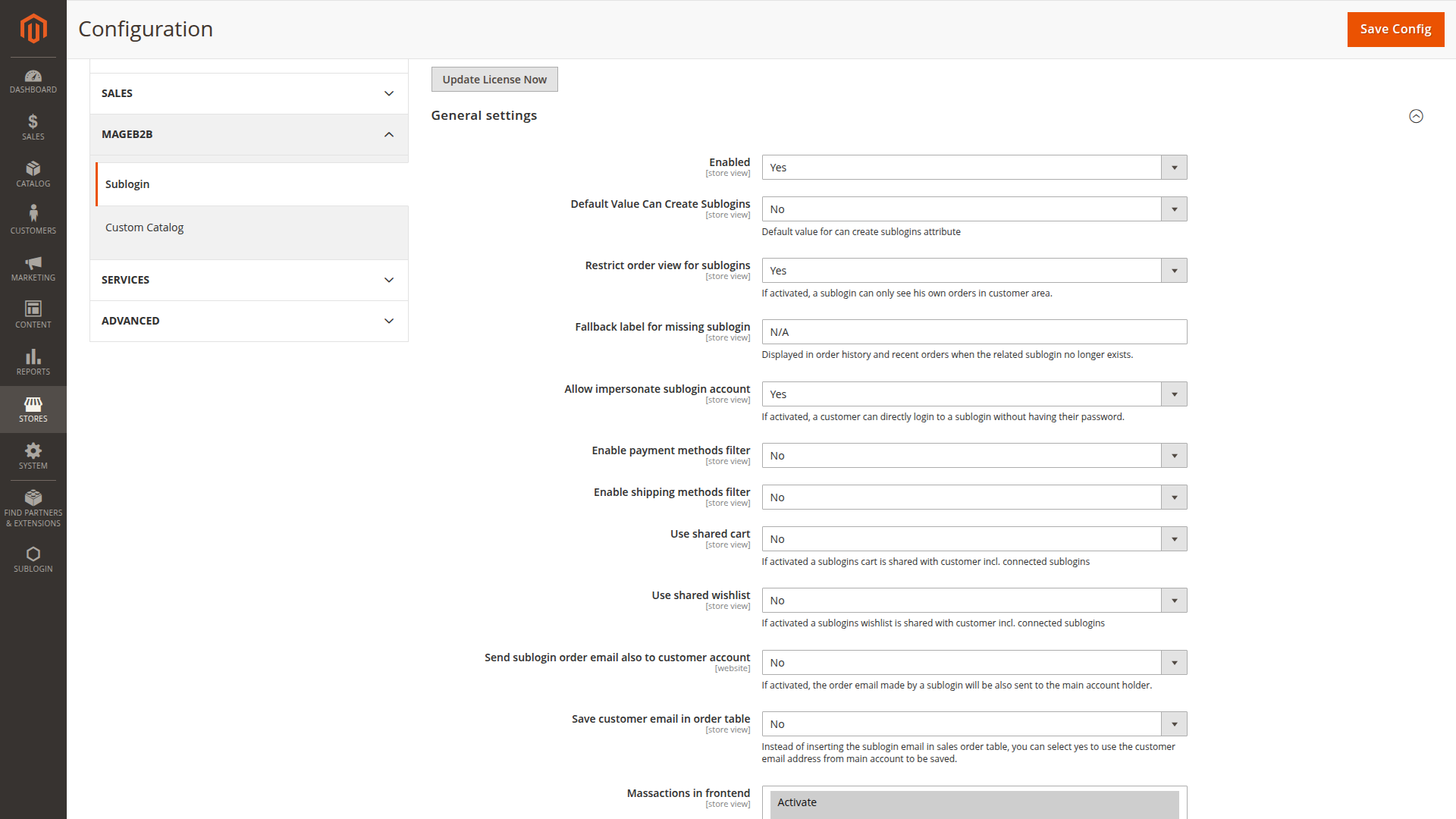
General settings
| Setting | Default | What it changes |
|---|---|---|
| Enabled | Yes | Turns the base Sublogin functionality on for the selected scope. |
| Default Value Can Create Sublogins | No | Sets the initial value of the per-sublogin permission to manage other sublogins. Grant it only to trusted team leads. |
| Restrict order view for sublogins | Yes | Shows a sublogin only their own orders. Disable it only when every company user may see company-wide order history. |
| Fallback label for missing sublogin | N/A |
Replaces the sublogin name in order views if the original record no longer exists. Use a phrase staff will understand, such as Former company user. |
| Allow impersonate sublogin account | Yes | Lets the main account enter a sublogin session without knowing that person's password. The storefront shows a context banner and a way back to the main session. |
| Enable payment methods filter | No | Applies the payment-method list stored on each sublogin. Enable only after every active sublogin has been reviewed. |
| Enable shipping methods filter | No | Applies the shipping-method list stored on each sublogin. Saved values use full carrier and method codes. |
| Use shared cart | No | Uses one cart for the main account and attached sublogins. One user's changes become visible to the others. |
| Use shared wishlist | No | Uses one wishlist for the account family. |
| Send sublogin order email also to customer account | No | Copies the main customer on order confirmation for a sublogin order. |
| Save customer email in order table | No | Stores the parent customer's email on the order instead of the sublogin email. The sublogin ID still records who placed it. Check exports and integrations before changing this. |
| Massactions in frontend | Activate, Deactivate | Selects bulk actions the main account may use. Other options include newsletter, email preference and the ability to manage sublogins. |
| Require email confirmation of new created sublogin | No | Keeps access blocked until the sublogin follows the confirmation flow. Use this when the email owner must prove access before signing in. |
| Sublogin can delete own account | No | Adds self-deletion in the storefront. Review retention and support implications before enabling it. |
| Reactivate account when disabled | Yes | Reactivates eligible sublogins when the parent customer account is enabled again. Disable it if reinstatement requires an individual review. |
Shared cart and wishlist
Shared resources are convenient when a purchasing team builds one order together, but ownership becomes less clear. Test simultaneous sessions and decide who may remove items or change quantities. Sharing does not add collaborative quote editing.
Payment and shipping filters
The global switches activate restrictions already assigned to each sublogin. Roll them out in this order:
- Assign allowed methods to every active sublogin.
- Test an address that produces the expected shipping rates.
- Enable one filter in staging.
- Confirm checkout still offers at least one valid option.
- Enable the second filter only after the first works.
An empty result can block checkout. See Payment and Shipping Restrictions.
Public signup
| Setting | Default | What it changes |
|---|---|---|
| Enable public sublogin signup | No | Makes a request form available to guests who name an existing parent customer email. |
The form validates the parent email, the applicant's email and password, but a matching parent email is not proof that the applicant belongs to that company. A new request always starts inactive: the parent customer receives an approval email with a confirmation link, and an administrator can also activate the record in Admin.
The storefront route is /sublogin/signup/index under the active store base URL.
Admin settings
Filter Sublogin Addresses on Customer Edit is enabled by default. It hides sublogin-owned addresses from the normal customer-address grid, which keeps the parent customer's address list focused on parent records. Disable it only when administrators need to manage both address types from that grid.
Address settings
Choose Address management for sublogins first:
| Mode | Result |
|---|---|
| Disallow using customer addresses | The sublogin cannot select parent customer addresses. Use this only when sublogin-owned addresses are enabled and maintained. |
| Allow to use all customer addresses | Every parent customer address is available to the sublogin. This is the default. |
| Use custom address management | The main account assigns selected parent addresses to each sublogin. |
Then review the related settings:
| Setting | Default | What it changes |
|---|---|---|
| Use sublogin address as a customer | No | Lets the parent customer use addresses created for sublogins. |
| Bind sublogin to customer default billing address | No | Forces checkout to the parent account's default billing address. |
| Enable add new address option for sublogins in checkout | No | Lets a sublogin create an address during checkout. Enable only if buyers are allowed to expand the company's address book. |
| Show customer address under My Account for sublogin | Yes | Displays parent customer addresses in the sublogin account area, subject to restrictions. |
| Automatically add new customer address | No | In custom management mode, assigns a newly created parent address to restricted sublogin address books. Review whether broad automatic assignment is acceptable. |
| Set customer default address as sublogin default | No | Uses the parent defaults only when the sublogin has no default address. |
| Allow customer to delete an address used by sublogins | No | Allows parent users to remove an address still assigned to sublogins. Keeping this off avoids broken assignments. |
| Show main address under My Sublogins | No | Displays a headline address on the sublogin management page. |
| Not available address message | N/A |
Text shown when that headline address is missing. |
Test billing and shipping separately. A setup can allow a delivery address while still binding billing to the parent default.
See Address Management for workflow examples.
Report settings
Reports are included in the base package.
| Setting | Default | Guidance |
|---|---|---|
| Enable reports for customer | Yes | Shows order and product reports to the main account. |
| Enable reports for sublogin | No | Shows reports in a sublogin session. Enable only if the report scope matches that user's visibility policy. |
The relevant Admin ACL permissions must also be granted to administrator roles.
Email settings
| Setting | Default | Guidance |
|---|---|---|
| Email Sender | Sales | Magento sender identity used by Sublogin messages. |
| Use Sublogin Store ID | No | Uses the sublogin record's store for templates and labels instead of the store active during the order. Useful only for deliberate cross-store account management. |
| New, confirmation, reset and expiry templates | Module defaults | Create store-specific overrides through Magento's email template system rather than editing vendor files. |
| Send plain password in account emails | No | Keep disabled. Use setup and reset links so passwords are not copied into mailboxes. |
| BCC Receiver | Empty | Separate multiple recipients with semicolons. Consider privacy and retention before copying account messages. |
| Add order details to selected templates | Empty | Adds order context only to the selected Sublogin messages. |
| Email templates for store owner | Empty | Sends store-owner alerts for selected events. |
| Customer optional email templates | Module event list | Decides which messages may use the optional parent-customer email field. |
| Sublogin optional email templates | Module event list | Decides which messages may use the optional sublogin email field. |
Send a setup message, a password-reset message and an order message to a staging mailbox. Confirm the store name, sender, recipient and links for every store view you operate.
See Email and Account Recovery.
Address templates and content
The address template fields control text, one-line and HTML rendering for Sublogin address data. Keep Magento template variables intact and test the result anywhere it is used. The HTML field accepts a limited set of safe formatting tags.
Static block for sublogin grid at frontend accepts a CMS block identifier. Use it for short company instructions above the grid, such as whom to contact before creating a buyer. Leave it empty when no instruction is needed.
Debug logging
Debug logging is disabled by default and available only at default scope. Enable it for a specific investigation, reproduce the issue, collect the relevant entries, and disable it again. Do not leave verbose logs enabled as routine monitoring.
Go-live check
Before enabling Sublogin for customers:
- Verify one main account with two sublogins.
- Confirm email uniqueness and account recovery.
- Test own-order and company-order visibility.
- Test every address mode you intend to offer.
- Confirm at least one payment and shipping combination for each restricted buyer type.
- Verify impersonation starts and ends clearly.
- Test shared cart and wishlist with two simultaneous sessions if enabled.
- Review the public signup setting.
- Run the same checkout checks with every installed add-on.
Continue with Create Your First Sublogin.