
Create Your First Sublogin
Create the first sublogin in staging and use it to complete a real buyer journey. One successful record is more useful than importing a full organization before address, checkout and email rules have been tested.
Use a fictional buyer with a normal-looking demo address, for example:
- Name: Elena Fischer
- Company role: Procurement Manager
- Email:
elena.fischer@northstar-industrial.example
Do not use a real employee or customer record in documentation or training captures.
Create it from the customer account
- Sign in as the main customer account.
- Open My Sublogins.
- Select Add New Sublogin.
- Enter the buyer's name and unique email address.
- Set an active status or expiry date according to your access policy.
- Decide whether the person receives Sublogin emails and newsletters.
- Decide whether they may manage other sublogins. Keep this off for ordinary buyers.
- Assign addresses and, when the global filters are enabled, allowed payment and shipping methods.
- Save the record.
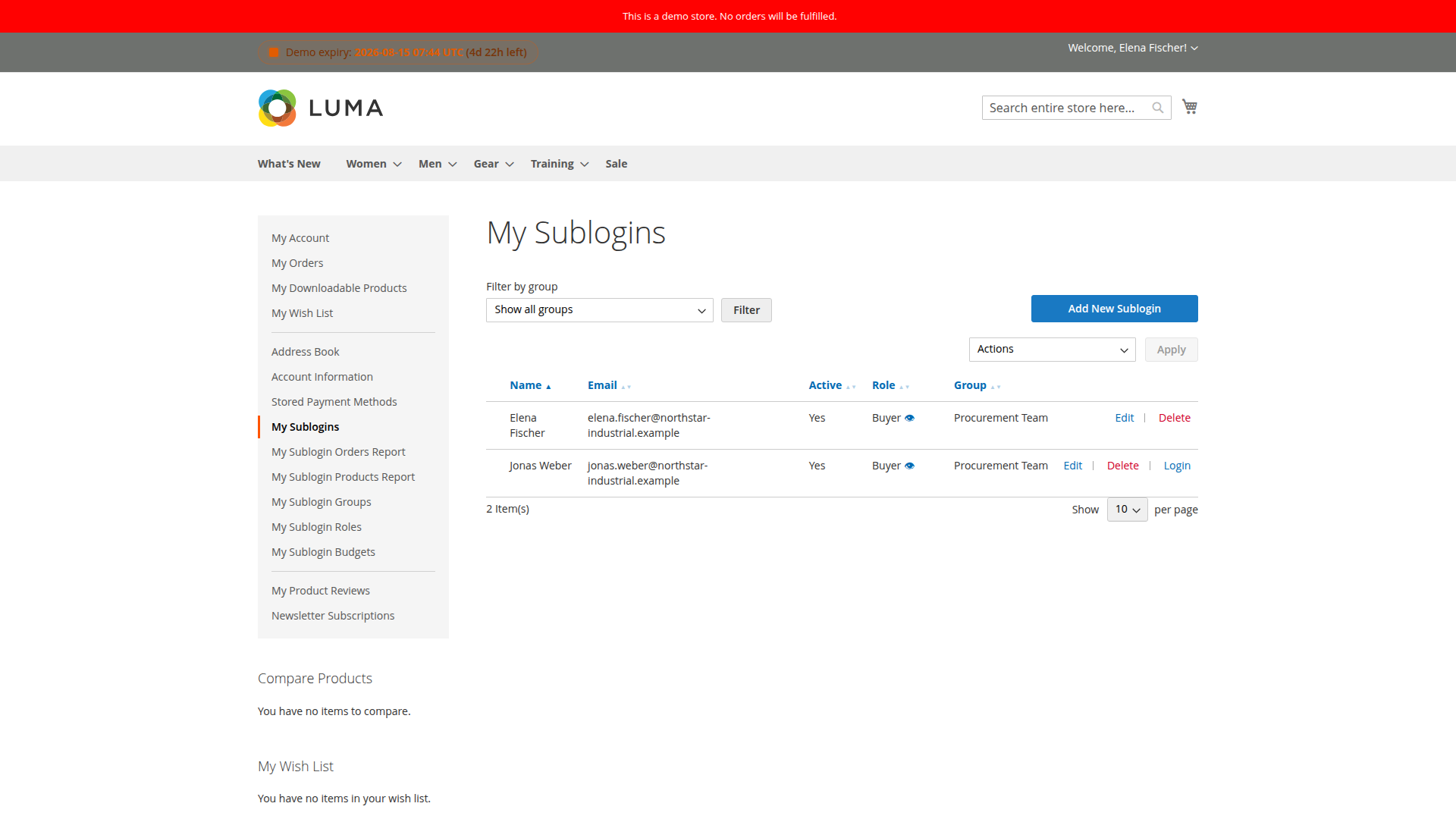
The exact fields depend on installed add-ons. Role, group, budget, catalog and order-approval controls appear only when their packages are active.
Set up the password safely
Use the configured account setup or confirmation message so the new user creates their own password. The password must satisfy Magento's configured minimum length and character-class rules.
Keep Send plain password in sublogin account emails disabled. If no message arrives:
- confirm that the email address is correct and unique;
- check whether the sublogin is configured to receive emails;
- inspect the Magento mail transport or staging mailbox;
- send a fresh setup or reset message instead of sharing a password manually.
If email confirmation is required, the account cannot be used until its confirmation flow is complete.
Create or review it in Magento Admin
Administrators can manage records from Sublogin > All Sublogins. This is useful for support, bulk review and add-on fields that a customer may not control.
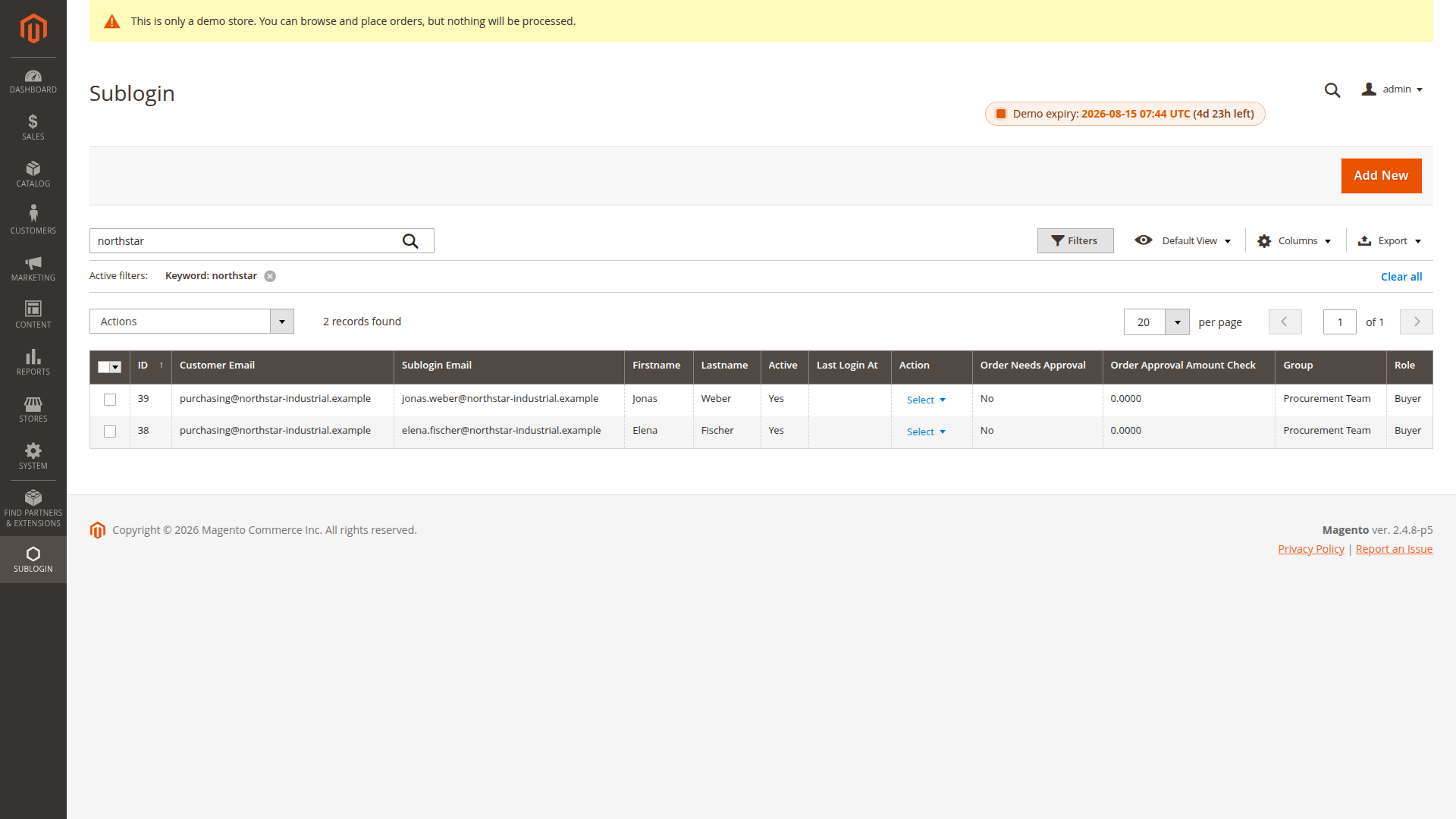
An administrator should confirm:
- the correct parent customer and website scope;
- active and expiry state;
- the sublogin email is not used by a customer or another sublogin in the same account scope;
- assigned addresses and checkout methods;
- any Role, Budget, Custom Catalog or Order Approval values contributed by add-ons.
Do not treat the Admin grid as a substitute for a storefront test. A record can look complete in Admin and still have no valid checkout combination.
Test direct sign-in
- Sign out of the main account.
- Open the normal Magento customer login page.
- Sign in with the sublogin email and password.
- Confirm the account page shows the sublogin identity.
- Confirm order history follows Restrict order view for sublogins.
- Add a product to the cart and proceed through address, shipping and payment selection.
- Place a staging order and confirm its Sublogin value in Admin.
Sublogins use Magento's customer login entry point. They are not separate Magento customer entities, even though they have separate credentials.
Test main-account impersonation
When Allow impersonate sublogin account is enabled:
- Sign in as the main customer.
- Open My Sublogins.
- Select Login for the new buyer.
- Confirm the storefront clearly states that the session is acting as that sublogin.
- Perform the support check you need.
- Use the banner link to return to the main account.
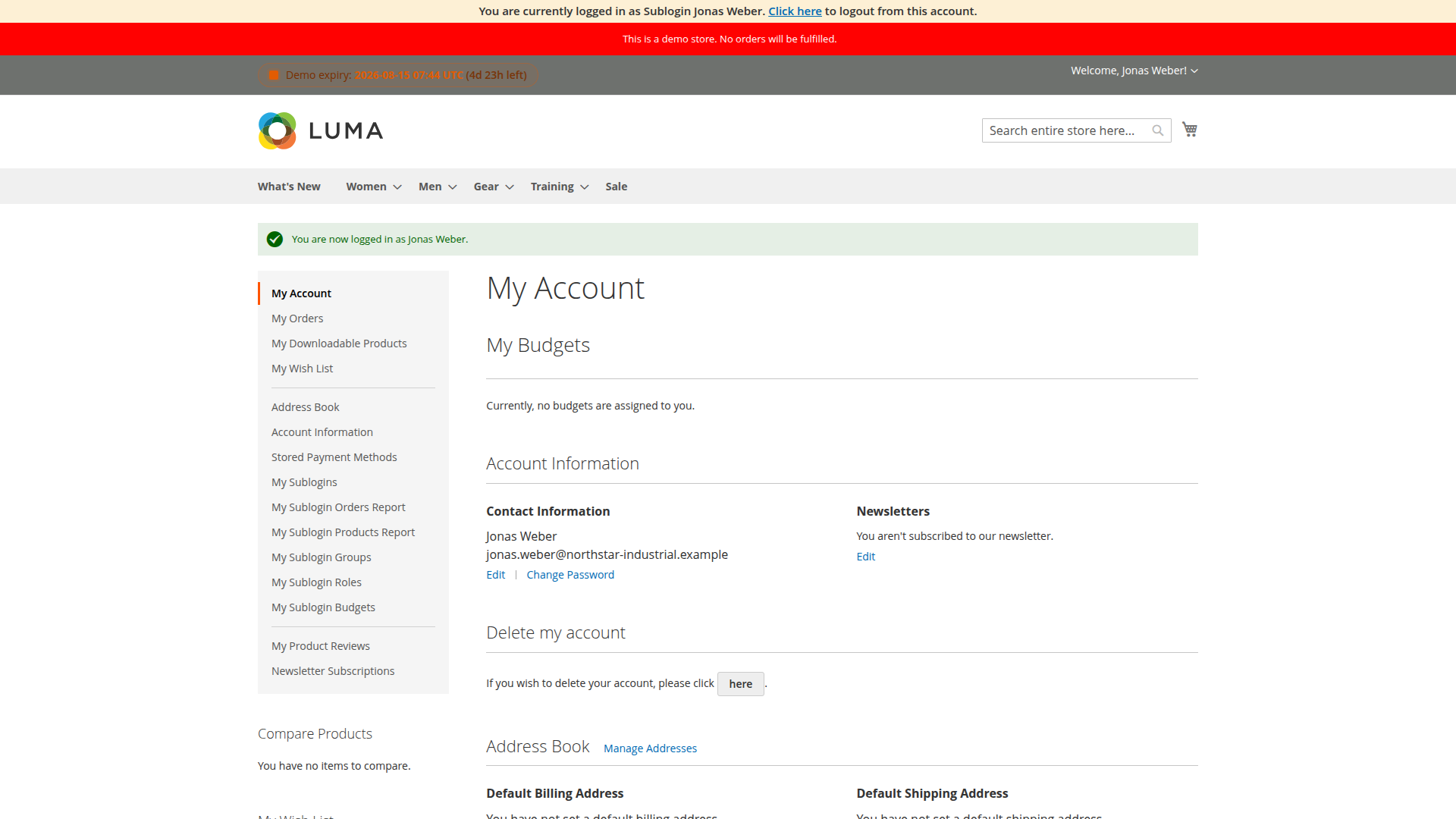
Impersonation is intended for account owners and support workflows. It should never require learning or sending the sublogin's password.
Assign addresses deliberately
The available choices depend on Address management for sublogins:
- Allow all customer addresses makes every parent address available.
- Custom address management requires the main account to assign selected addresses.
- Disallow customer addresses requires a usable sublogin-owned address when the workflow permits one.
Test shipping and billing separately. The store may bind billing to the parent default even when the buyer can choose a different delivery address.
Add optional controls in this order
Once the base checkout works, add controls one at a time:
- Role and group, if the buyer needs storefront restrictions or a place in an approval hierarchy.
- Custom Catalog, if the buyer should see a limited assortment.
- Budget, if spending must be checked at checkout.
- Order Approval, if an order must wait for the main account or a parent group.
- One-Time Budget, only for a temporary next-order allowance.
Place another order after each change. This makes it clear which rule caused a missing product, checkout method or approval state.
Common first-record failures
The email is rejected
The address already belongs to the parent customer, another Magento customer or another sublogin in the same account-sharing scope. Use a unique address or review Stores > Configuration > Customers > Customer Configuration > Account Sharing Options.
Sign-in fails after creation
Check active status, expiry date and required email confirmation. If the parent account was disabled and restored, also review Reactivate account when disabled.
No address is available at checkout
Review the address-management mode, selected parent addresses, permission to add a new address and any default-billing restriction.
No payment or shipping method is available
Temporarily disable the relevant Sublogin filter in staging. If checkout returns, assign at least one method that is also valid for the current cart, address and Magento shipping or payment configuration.
The buyer sees the wrong orders
Review Restrict order view for sublogins, then confirm the order carries the expected sublogin identity. Integrations that create orders outside the normal Sublogin session may need explicit ownership handling.