
Quote Management
The quote workspace brings the commercial details of a request into one place: customer, project, products, offered prices, shipping, payment, messages, attachments, and the next permitted workflow status. Use it to prepare an offer that the customer can review and accept without rebuilding the order by hand.
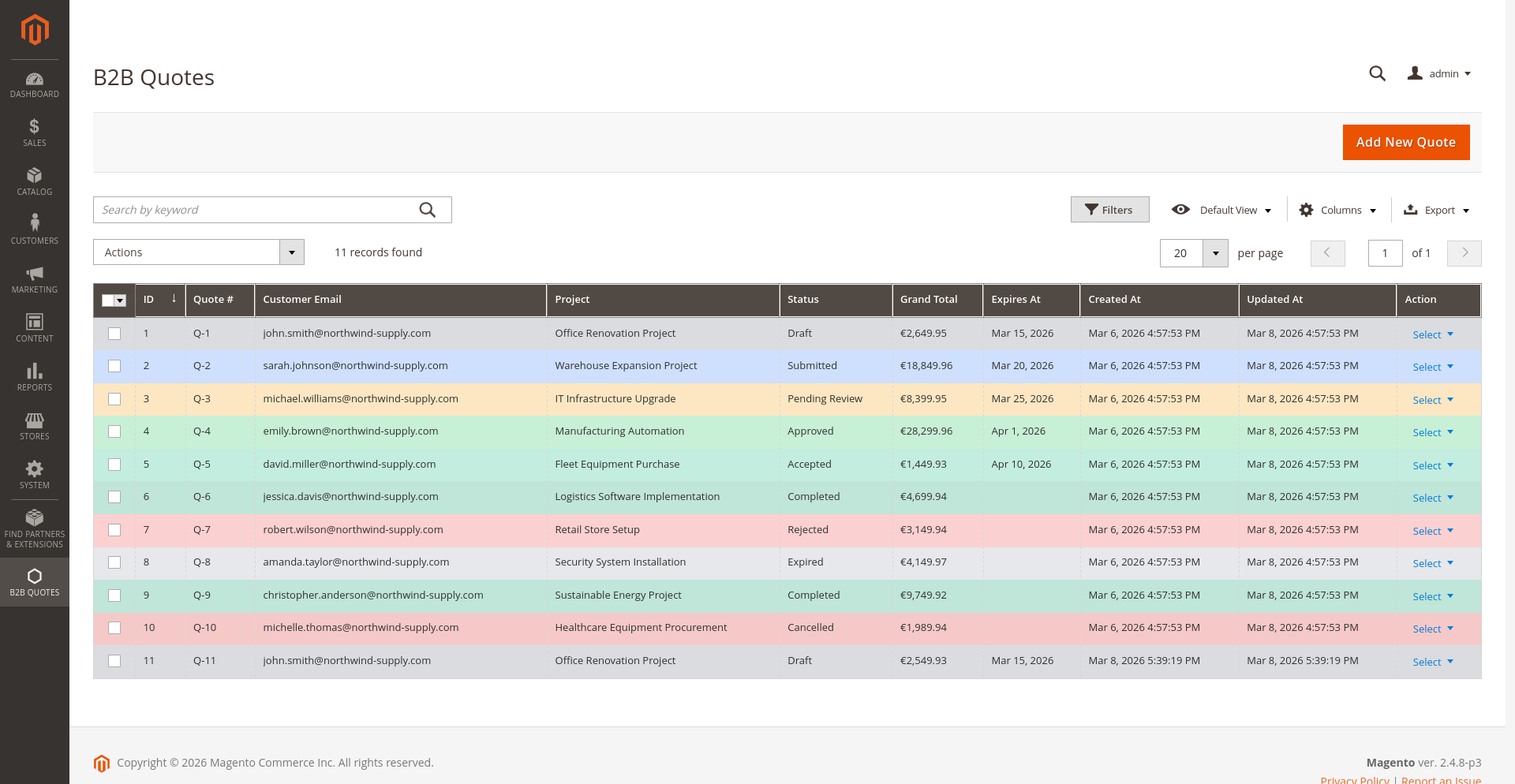
Find and filter quotes
Open B2B Quotes > Quotes. The grid shows the fields needed for day-to-day triage:
| Column | What it tells you |
|---|---|
| ID and Quote # | Internal ID and customer-facing quote number |
| Customer Email | Customer or guest contact associated with the request |
| Project | Optional purchasing project used to organise related quotes |
| Status | Current configurable workflow status |
| Grand Total | Current quoted total |
| Expires At | Date after which the offer is no longer valid |
| Created At and Updated At | When the quote was created and last changed |
Each displayed field has an appropriate text, range, select, or date filter. The grid also provides full-text search, saved views, column controls, CSV/XML export, and inline editing where the current workflow permits it.
Use mass actions carefully
Select one or more rows to:
- change their status
- download their PDFs
- delete them
- merge compatible quotes
- assign a responsible admin user
Status changes still pass through the configured transition rules. A merge requires at least two editable quotes for the same customer and must remain within the configured item limit. Review the merge preview before deciding whether messages and attachments should move to the resulting quote.
Assign responsibility for a quote
Each quote can have a responsible administrator. The behaviour is set under Stores > Configuration > MageB2B > B2B Quote > Admin Responsibility:
- Admin User Quote — with Currently Working On, the last administrator who edited the quote is treated as responsible. With Assigned, the quote form exposes an Assigned Admin User field and responsibility is set explicitly.
- Enable Admin Inbox Notifications — adds Magento Admin Inbox notices when customers change a quote status or send a message, so the responsible admin sees it without checking email.
In the grid, the Admin User column shows the current owner and the Assign Admin User mass action reassigns several quotes at once.
Review and edit a quote
Open a row from the grid. The edit screen includes the following working areas:
- customer and store view
- status, project, tags, and categories
- expiration date and internal note
- the customer's original note
- quote items and offered prices
- shipping, payment, purchase order number, and quote fee
- calculated totals and manual adjustments
- attachments and the message thread
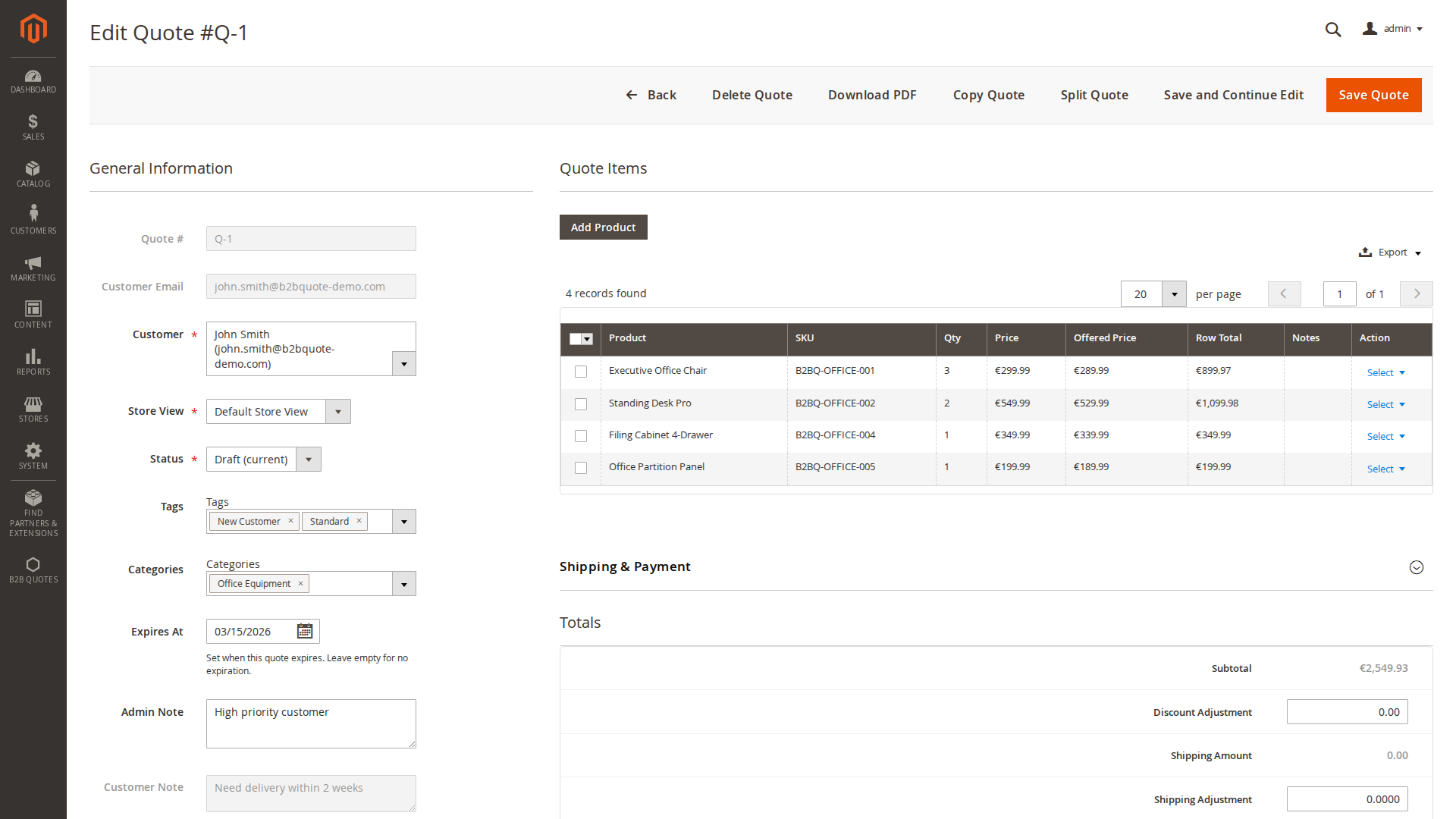
The buttons shown at the top depend on the quote state and the administrator's permissions. Available actions can include Save, Save and Continue, Convert to Order, Create Agreement, PDF, Copy, Split, and Delete.
Add products and prepare the offer
- Open the quote and select Add Products.
- Find the required products and enter their quantities.
- Review the original product price and enter the offered price or adjustment required for the deal.
- Add item notes where the customer needs an explanation, substitute, lead time, or packaging detail.
- Choose shipping and payment options after the relevant address data is complete.
- Review taxes, shipping, fees, discounts, and the grand total before saving.
The totals section distinguishes calculated amounts from commercial adjustments. A shipping adjustment can be positive or negative; the grand total is recalculated from the item subtotal, discount adjustment, shipping, shipping adjustment, quote fee, and tax.
Save the quote in this order when troubleshooting an editor change:
- customer, project, status, and expiration;
- item additions, quantities, options, offered prices, and notes;
- billing and shipping addresses;
- shipping method, shipping adjustment, payment method, PO number, and fee;
- totals, messages, attachments, categories, and tags.
The editor revalidates the quote while saving. A locked or terminal quote can show its data without accepting a commercial edit. If revision tracking is enabled, the committed change can create a revision after the save. Refresh the quote before comparing a revision or running a second action.
Edit many items with CSV
The quote editor's item-level bulk tool exports and imports a compact CSV using sku, qty, price, and notes. This is useful for preparing a large individual offer in a spreadsheet.
It is separate from the optional CSV Import/Export Add-On, which moves complete quote-related entities such as quotes, addresses, messages, projects, statuses, transitions, categories, tags, and fees.
Change the workflow status
Choose a status that is valid from the quote's current status. The extension checks the transition, actor, store, and any required note before applying it. For example, approval is normally available only for a submitted quote; rejection can be available for submitted or approved quotes when the workflow permits it.
If the status is unavailable or rejected, inspect Status Transitions rather than forcing the database value. Workflow rules may add further conditions.
Communicate with the customer
Use the message section for quote-specific questions, explanations, and negotiation history. Messages are attached to the quote and can trigger the configured email notification. Attachments are uploaded immediately and associated with the current quote, so check the file and recipient context before sending a message.
Keep internal-only information in Admin Note. The Customer Note displays the customer's submitted note and is read-only in the administrator form.
Convert an accepted quote to an order
Use Convert to Order only after the quote has reached an eligible state and its customer, addresses, products, prices, shipping, and payment data have been reviewed. The conversion revalidates product availability and pricing according to the configured order-creation policies.
If conversion returns an error, first check whether an order was already created before retrying. See Cart and Order Conversion for the conversion modes and validation settings.
The administrator order action uses the same product, price, stock, address,
shipping, payment, expiration, and transition checks as the customer flow.
Changing the status in the grid is not a substitute for conversion: an
ordered state without an order should be treated as an operational incident
and investigated in the logs and quote history.
Copy, split, or merge
- Copy creates a new quote from an existing one when a similar offer is needed.
- Split distributes selected item groups into new quotes.
- Merge combines compatible quotes for the same customer and can optionally carry messages and attachments forward.
These operations are permission-controlled and can be limited in configuration. See Merge & Split before using them on active negotiations.
Generate a PDF
Use PDF on the quote or Download PDF on selected grid rows. Availability can depend on the quote's current status and PDF configuration. The optional PDF Designer add-on supplies custom layouts; it is not required for the standard quote PDF.
See PDF Export & Layouts and PDF Designer Add-On.