
Status Transitions
A status transition is one permitted step from a source status to a target status. It answers three practical questions: who may make the change, whether they must leave a note, and who should be notified afterwards.
Open B2B Quotes > Status Transitions.
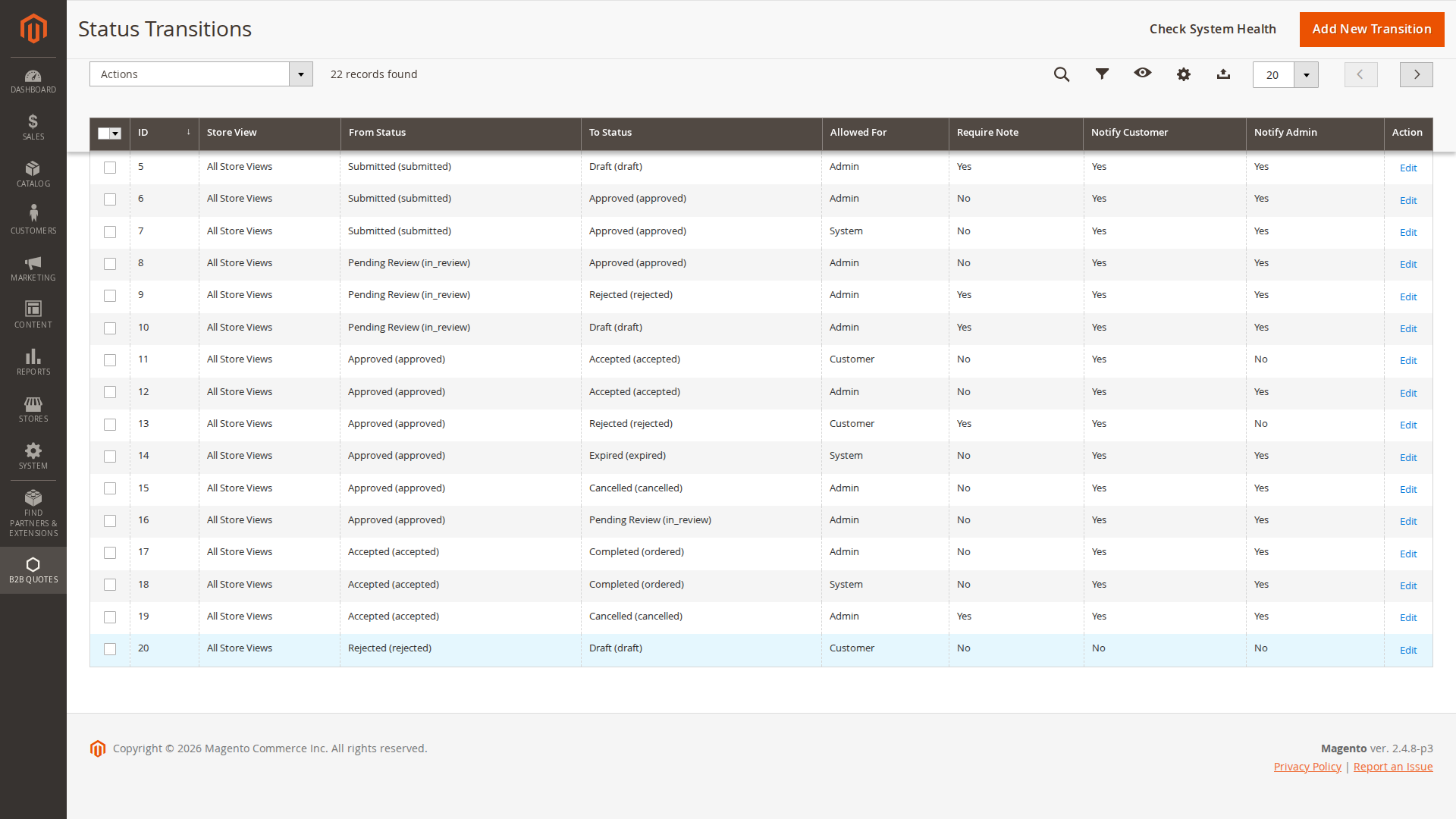
Create a transition
- Select Add New Transition.
- Choose the relevant Store View.
- Select the From Status and To Status.
- Choose who may use it: Customer, Admin, Both, or System.
- Decide whether a note is required.
- Choose the customer and administrator notification options.
- Select an email template when the transition should send a notification.
- Save and test the transition as the intended actor.
Field reference
| Field | Purpose |
|---|---|
| Store View | Applies the transition globally or to a specific store view. |
| From Status | Current status required before the change. |
| To Status | Status reached after the change. |
| Allowed For | Limits the action to the customer, an administrator, both, or an automated system process. |
| Require Note | Prevents the change until the actor provides a reason or comment. |
| Notify Customer | Sends the configured transition notification to the customer. |
| Notify Admin | Sends the configured transition notification to the administrator recipient. |
| Notification Template | Email template used for this transition. |
Example approval path
A straightforward merchant-led flow can use these transitions:
| From | To | Allowed for | Require note | Typical use |
|---|---|---|---|---|
| Submitted | Pending Review | Admin | No | A sales user starts reviewing the request. |
| Pending Review | Approved | Admin | No | The offer is ready for the customer. |
| Approved | Accepted | Customer | No | The customer accepts the offer. |
| Approved | Rejected | Customer | Yes | The customer declines and explains why. |
| Accepted | Completed | System | No | Quote-to-order processing completes the workflow. |
The names in your installation may differ because transitions point to configurable statuses, not directly to labels in this example.
Common configuration problems
The expected action is missing
Confirm that a transition exists from the quote's current status and that Allowed For includes the person performing the action. Also check the store view: a transition created for another store does not automatically apply here.
“Invalid transition” appears
The target status is not reachable from the current status for that actor. Do not work around this by adding every possible transition. Add the exact business path you want and test it from the real starting status.
A note is requested unexpectedly
Open the matching transition and review Require Note. More than one transition can lead to the same target, so check the current source status as well.
No email is sent
Verify the relevant notification checkbox, the selected email template, Magento email delivery, and the configured recipient. A status change alone does not guarantee that both parties are notified.
Design guidance
- Start with the shortest workflow that matches how your sales team actually works.
- Use System only for transitions performed by automation, such as expiry or quote-to-order processing.
- Require notes for decisions that need an audit trail, such as rejection or cancellation.
- Avoid duplicate transitions for the same store, source, target, and actor.
- After changing a live workflow, test customer actions, administrator actions, notifications, and automated rules.